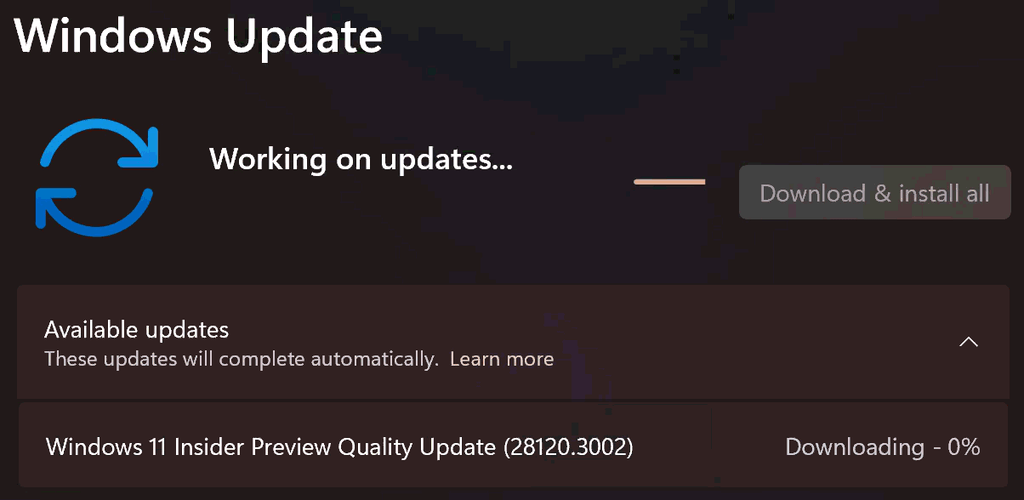
Hi all, last Friday Microsoft released Windows 11 Build 28120.3002 to the Experimental (26H1) channel
A quick 2nd flight for this channel too, the Windows share option is very nice!
Happy Upgrades!
Changes and improvements gradually being rolled out*
This update includes a small set of general improvements and fixes that improve the overall experience for Insiders running this build on their PCs.
[Settings]
The Bluetooth quick settings page is now navigable using gamepad input.
[Windows Share]
Added the ability to pin your favorite apps in the Windows share window.
Known issues
We are aware Easy Anti-Cheat (EAC) might fail to launch and display the error, “The application was unable to start correctly (0xc000007b).” We continue to work on a fix for this issue.
[Brightness]
Fixed an underlying issue resulting in some Insiders experiencing issues with brightness after the latest flights, including brightness settings being unexpectedly grayed out. File a new piece of feedback with as many details as possible if you continue experiencing issues.
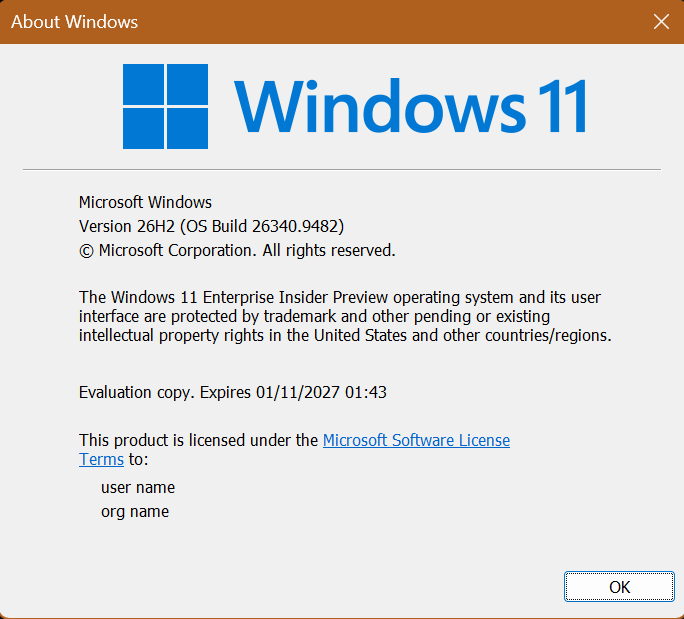
Hi all, last Friday Microsoft released Windows 11 Build 26340.9482 to the Experimental Channel
A 2nd flight in the same week smooth install here on all devices.
Changes and improvements gradually being rolled out
[Security]
Memory Integrity protection expands automatically to more eligible devices. As outlined in our recent blog, Windows might now enable Memory Integrity (HVCI) during updates on supported PCs to help improve security and prepare devices for advanced Windows security features, while respecting existing user or IT administrator choices.
[Context menu]
Building on the work we’ve been doing to improve the context menu experience:
We’ve added a new teaching tip you might see as a first-time experience to help you learn about the customization options.
In theme with giving you more control, you can also now turn off the customize context menu entry in the new context menu settings.
We’ve fixed a few small issues with the Send To option in the context menu not working as expected.
[File Explorer search]
Search from This PC in File Explorer is now indexer-based, making it much faster and consistent with search from File Explorer Home.
[Taskbar]
Improved how the IME icon scales in the taskbar when using small taskbar icons.
[Screen capture]
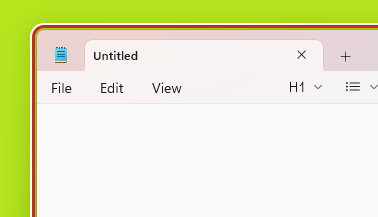
We updated the visual indicator shown during screen capture, changing the capture border from yellow to
red to make active capture sessions easier to identify.
Screen capture displaying a red border around the captured area.
[Settings]
Made some small visual adjustments to improve the design of the Temporary files page under Settings > System > Storage.
Fixed an issue causing mouse cursor customization to not work correctly after the latest flights.
Fixed an issue causing desktop background customization to not persist after a reboot after the latest flights.
[Brightness]
Fixed an underlying issue resulting in some Insiders experiencing issues with brightness after the latest flights, including brightness settings being unexpectedly grayed out. File a new piece of feedback with as many details as possible if you continue experiencing issues.
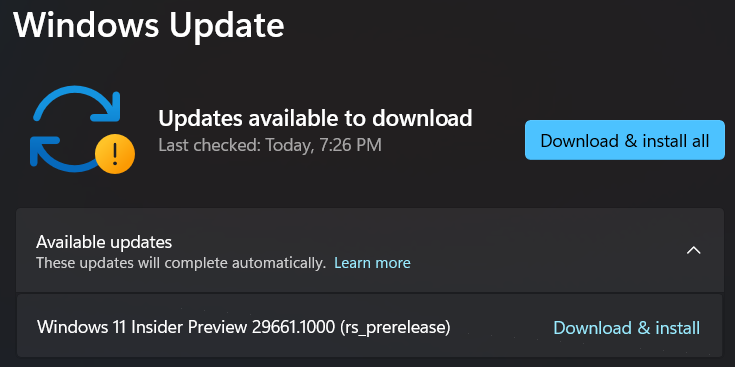
Hi all, last Tuesday Microsoft released Windows 11 Build 29661.1000 to the Experimental (Future Platforms) Channel
A few fixes for this flight, smoothly processed on my devices in this channel except for 1 the last access to the hello Pin (Feedback Hub: https://aka.ms/AA13dolt )
Happy updates!
Changes and improvements gradually being rolled out
This update includes a small set of general improvements and fixes that improve the overall experience for Insiders running this build on their PCs.
[Kerberos enhancements]
IAKerb is now enabled by default for Windows client. IAKerb is a Kerberos extension that allows Windows authentication to succeed in scenarios where traditional Kerberos can’t be used because a direct connection to a domain controller is unavailable. This extension helps reduce reliance on NTLM while improving compatibility for modern authentication scenarios. For additional background, implementation details, and early preview information, see Reducing NTLM Dependency: IAKerb and LocalKDC in Windows Insider Preview.
[Input]
Fixed an issue in the latest builds that caused the mouse cursor to get into a state where it blinked repeatedly for some Insiders.
Fixed an issue in the latest builds that caused the mouse cursor not to be visible in certain apps.
Fixed an issue in the latest builds where the mouse pointer speed option in Settings didn’t work.
[Windows Update]
Fixed an issue causing some Insiders to be unable to update to the latest builds and see error 0x80070005.
Hi all, Last Tuesday Microsoft released Windows 11 Build 28120.2912 to the Experimental (26H1) Channel.
A few fixes in this flight, all went fast and smoothly.
Enjoy your Flight!
Changes and improvements gradually being rolled out
This update includes a small set of general improvements and fixes that improve the overall experience for Insiders running this build on their PCs.
[Input]
Fixed an issue that caused zoom not to work in certain apps when using a touchpad after the latest flights.
Fixed an issue causing the mouse cursor to move in the wrong direction on portrait monitors for some Insiders after the latest flights.
Known issues
We’re investigating reports that some games that use Easy Anti-Cheat (EAC) might fail to launch and display the error, “The application was unable to start correctly (0xc000007b).” We’re working on a fix and expect the issue to be resolved by the next build.
Hi all, Last Tuesday Microsoft released Windows 11 Build 26340.9354 to the Experimental Channel.
A big updated feature list, smooth updates on my devices, Happy Updates!
Changes and improvements gradually being rolled out
[Cross-device resume improvements]
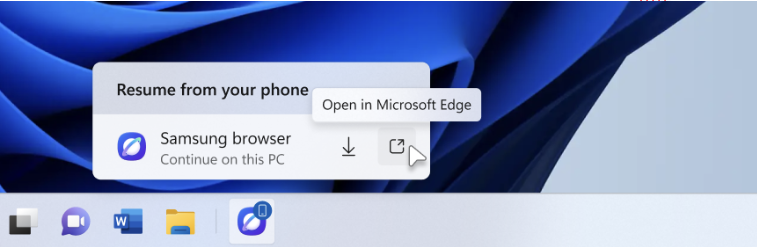
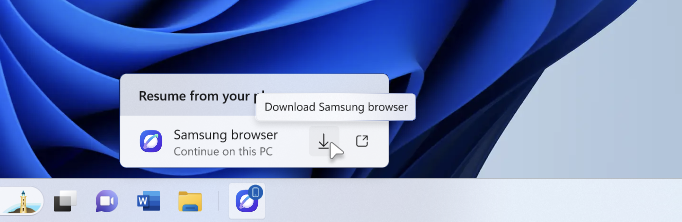
We’re making it easier to continue where you left off on your PC. When you resume a webpage from your phone and the phone’s browser isn’t installed on your PC, the Resume hovercard now gives you two options: open the page directly in your PC’s default browser or install the phone’s browser for a native experience. This update helps you continue your work immediately without requiring an app installation first.
The Resume hovercard provides an option to open the webpage in the PC’s default browser
The Resume hovercard provides an option to install the originating phone browser
[Settings – Home]
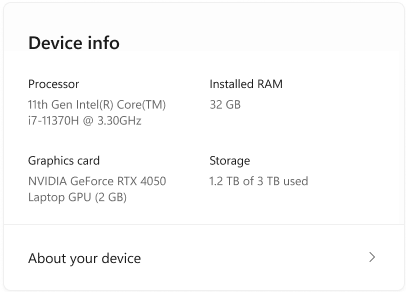
We’re beginning to expand the new Device Info Card experience for Settings Home to additional markets globally. Available for Windows Insiders signed in with their Microsoft account, the Device Info Card provides a quick snapshot of your PC’s key specifications and usage. From the card, you can go directly to Settings > System > About to see more detailed information about your PC.
Note: We’ve been previewing the Device Info Card with Windows Insiders in the U.S. and on Settings Home for IT-managed PCs signed in with a Microsoft Entra ID.
The new Device Info Card in Settings Home provides a quick view of key PC specifications and storage usage
[Settings – Privacy & security]
The improved Privacy & security page in Windows Settings helps you find the Camera, Microphone, and Location privacy controls more easily. It groups similar controls across the page and brings usage information from deeper linked pages onto this page.
[Family Safety]
Improved family safety messaging when applications are blocked because of age-restricted parental controls.
[Taskbar & system tray]
We’re restarting the rollout of enhanced taskbar preview animations, providing smoother transitions between app groups.
[File Explorer]
Key file information, such as name, location, and date, now appears in a consistent layout on the File Explorer search results page, making search results easier to scan.
[Narrator]
Read and explore math equations with Narrator
We’re adding math reading and navigation support in Narrator, bringing clearer and more natural math experiences to users who are blind or have low vision. Math is at the heart of STEM education and learning, and this update helps students and professionals independently read, understand, and explore equations, formulas, and scientific notation with confidence.
With this update, Narrator can read math equations aloud in supported Microsoft 365 apps, including Word and PowerPoint. Instead of announcing every symbol individually, Narrator reads equations in a structured, natural way that reflects how they’re meant to be understood. For example, when Narrator reaches a fraction, it reads the numerator and denominator together so you can understand the relationship between them.
You can also explore equations in more detail with a dedicated math navigation mode. Press Narrator key + Alt + N to turn on math navigation, then use the arrow keys to move through different parts of the equation, such as fractions, exponents, and roots. This mode lets you move through an equation one part at a time instead of hearing the full expression all at once. Press Esc to exit math navigation mode.
Math reading is available as soon as you install this build, with no additional download or setup required. To try it, turn on Narrator by pressing Windows key + Ctrl + Enter, then open a supported document that contains mathematical equations and use your standard Narrator reading commands. You can also personalize the experience in Math reading settings in Narrator settings, including speech style and math navigation preferences.
We’re continuing to refine this experience and plan to expand it to more scenarios over time. We’re beginning to roll this out to Windows Insiders, so it might not be available to everyone right away.
The Narrator Math reading settings page in Windows Settings
Feedback: Share your thoughts in Feedback Hub (WIN + F) under Accessibility > Narrator.
[Magnifier]
Magnifier now understands each of your displays
More and more of the work people do happens across more than one screen. You draft on one display and keep source material open on another. You fill in a form while a reference document sits beside it. Those extra displays can be more helpful when each one can do its own job, and now Magnifier supports exactly that.
To use this update, set your monitors to Extend in System > Display, not Duplicate, so Windows treats each screen as its own space.
Every screen keeps its own view at its own zoom. In earlier versions of Magnifier, zooming in stretched a single magnified view across all of your displays, so one screen’s zoom followed you everywhere and screen edges blurred together. With this update, each monitor’s boundary is respected, and each monitor can have its own zoom percentage. Your writing screen can be at 300% while your reference screen stays at 150%, and the magnified view no longer spills from one display into the next. This behavior matters because different tasks and screen resolutions often require different levels of magnification to remain comfortable to read.
Setting the zoom on each screen is easy. Choose whichever method feels natural:
Move your mouse pointer onto the screen you want to adjust, then press Windows key + Plus (+) or Windows key + Minus (-), or hold Ctrl + Alt and rotate your mouse wheel.
Set the percentages directly in Accessibility > Magnifier.
Drag the Magnifier toolbar onto a specific screen to adjust that screen from its on-screen controls.
Magnifier with Zoom per display enabled, allowing each monitor to maintain its own zoom level.
Per-monitor zoom is turned on by default. If you prefer the classic behavior where a single zoom spans all of your displays, you can turn per-monitor zoom off at any time from either the Magnifier toolbar or Accessibility > Magnifier. You can turn it back on whenever you like.
Keep the view that matters, right where you need it
As you move your mouse from screen to screen, the magnified view naturally follows your pointer. Sometimes this might cause you to lose sight of the content that you’re actively working on.
Viewport locking keeps that view in place. For example, you might be drafting an email based on a section of a document open on another display. Position that display so the paragraph you need is in view, press Ctrl + Windows key + K, and the screen holds its view steady while you move your cursor over to write. The locked screen stays fully live and interactive, so you can glance back, click, or copy from it whenever you need to, and its view stays put until you release it.
A message appears on the screen when it’s locked, so you always know what’s being held. To lock or unlock a screen, point your mouse at that screen and press Ctrl + Windows key + K again. To release everything at once, press Windows key + Esc to dismiss all locks. You can change the lock shortcut to Ctrl + Alt + P in Accessibility > Magnifier.
Magnifier’s multiple display controls include independent zoom and view locking options
[Sound Settings]
We’ve made several improvements to Settings > System > Sound. These improvements include:
We’ve updated the design of the volume sliders in Sound Settings so that they display audio activity on the side when audio is playing.
The updated volume slider in Sound Settings displays active audio levels
If your audio device supports hardware acceleration, an option to allow hardware acceleration is now available in the Advanced section of the device’s properties.
You can now configure exclusive mode for an audio device in the Advanced section of the device’s properties, so you don’t have to go to Control Panel.
You can now configure adaptive communication sound levels, which reduce the volume of other sounds when communications activity is detected, directly in Settings.
The option to set an audio device as the default sound device for communication now always appears in Properties. The option is unavailable if the device is already the default instead of being hidden.
We’ve updated the text for allowing audio devices to make it clearer.
We’ve added a new banner when mono audio is enabled to make it clear that some properties don’t take effect while mono audio is active.
We’ve updated the All sound devices page:
You can now change default devices from this page.
We’ve adjusted the page design so that you can filter whether you’re viewing input or output devices.
We’ve added toggles so that you can choose whether to hide or show disabled, disconnected, and unplugged devices.
We’ve also updated the input and output audio properties pages in Settings to include jack information for devices that need it.
[Fonts]
Unicode has announced the encoding of two African writing systems in recent Unicode releases:
Garay was encoded in Unicode 16.0, released in September 2024.
Beria Erfe was encoded in Unicode 17.0, released in September 2025.
We’re pleased to share that Ebrima is our first Microsoft font to support both Garay and Beria Erfe, continuing our work to expand support for African writing systems across Windows. Along with this support, we’ve refined and improved Adlam. The updated glyph designs reflect the current Unicode standard and improve consistency.
A sample of Beria Erfe in the Ebrima font
A sample of Garay in the Ebrima font
[Print Management]
We’re temporarily removing the modernized Print Management experience from Windows Insider Preview builds while we continue refining the experience based on feedback. The existing Print Management tools remain available and are unaffected.
We plan to bring the updated Print Management experience back to Windows Insiders in a future build after additional improvements are complete.
[Notification Center]
Notification tips can now be saved to Notification Center after they’re dismissed or time out, making them easier to find again later.
[Taskbar]
Fixed an issue where the taskbar app preview window might not respond correctly to dark and light mode changes.
[Input]
Fixed an issue causing the mouse cursor to move in the wrong direction on portrait monitors for some Insiders after the latest flights.
[Admin Protection]
Fixed an issue in the previous flight that caused the UAC dialog not to appear for some Insiders when Admin Protection was enabled.
[Assisted Setup in OOBE]
Assisted Setup is a new, optional way to finish setting up a Windows PC. At the end of setup, you can choose to have Windows guide you through installing apps, personalizing your device, and getting up to date so that the PC is ready to use. The experience is entirely optional, and you can skip it to go directly to the desktop.
[General reliability]
Fixed an issue that caused some Insiders to see a SYSTEM SERVICE EXCEPTION bug check after the previous flight when launching or closing certain apps.
Known issues
We’re working on a fix for an issue causing mouse cursor customization not to work correctly.
We’re working on a fix for an issue causing desktop background customization not to persist after a reboot.
One of the biggest differences between traditional Group Policy and modern cloud management has always been policy enforcement frequency. While Group Policy refreshes every 90 minutes by default, Microsoft Intune policies typically rely on periodic device check-ins. With Config Refresh, Microsoft brings a similar “reapply and enforce” capability to Windows 11 managed through Intune.
In this blog post, we’ll look at what Config Refresh is, why it matters, how it works, and how to configure it in Microsoft Intune.
What Is Config Refresh?
Config Refresh is a Windows 11 feature that periodically reapplies previously received MDM policies to a device, helping prevent configuration drift and ensuring devices remain compliant with your organization’s standards.
Unlike a normal Intune sync, Config Refresh does not require communication with the Intune service. The device uses locally cached policies and can reapply them even when offline.
This means that if a setting is changed locally, intentionally or accidentally, Windows can automatically restore the managed configuration according to the configured refresh schedule.
Why Is Config Refresh Important?
Configuration drift is a common challenge in endpoint management.
Examples include:
A local administrator changes security settings.
A user modifies settings that should be controlled by IT.
Troubleshooting activities leave devices in a non-compliant state.
Before Config Refresh, these deviations might remain in place until the next MDM sync, which could take several hours. Config Refresh significantly reduces that window.
Benefits
Faster remediation of configuration drift
Improved compliance and security posture
Works even when devices are offline
Similar experience to traditional Group Policy refresh
Configurable refresh interval between 30 minutes and 24 hours
Config Refresh vs. Intune Sync
Many administrators confuse Config Refresh with an Intune sync, but they serve different purposes.
Intune Sync
An Intune sync:
Downloads new policies
Retrieves changed assignments
Processes compliance updates
Requires communication with Intune services
Config Refresh
Config Refresh:
Reapplies policies already stored on the device
Does not download new policies
Can work without internet connectivity
Focuses on maintaining existing configuration state
Think of Intune Sync as retrieving new instructions, while Config Refresh is enforcing previously received instructions.
Requirements
Config Refresh is supported on:
Windows 11 version 22H2 with the June 2024 security update or later
Microsoft Intune-managed devices
Supported Policies
Config Refresh primarily targets settings managed through the Policy CSP. Microsoft also indicates support for certain other CSP-based settings such as BitLocker.
Supported
Policy CSP settings
Many Settings Catalog policies
BitLocker-related policies
Currently Not Supported
Firewall policies
AppLocker policies
Personal Data Encryption (PDE)
Windows LAPS policies
Always test specific policy types before relying on Config Refresh for enforcement.
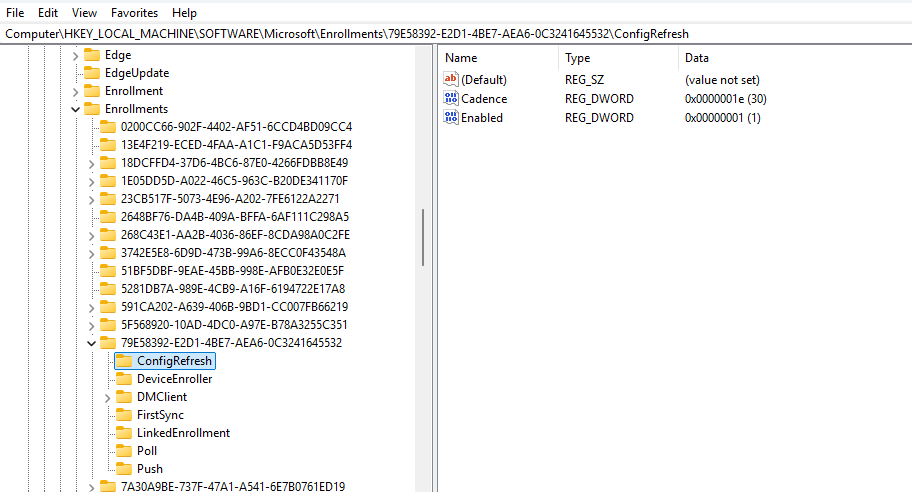
I searched for ‘ConfigRefresh’ in the Enrollments Key to easily find the correct GUID
Event Viewer
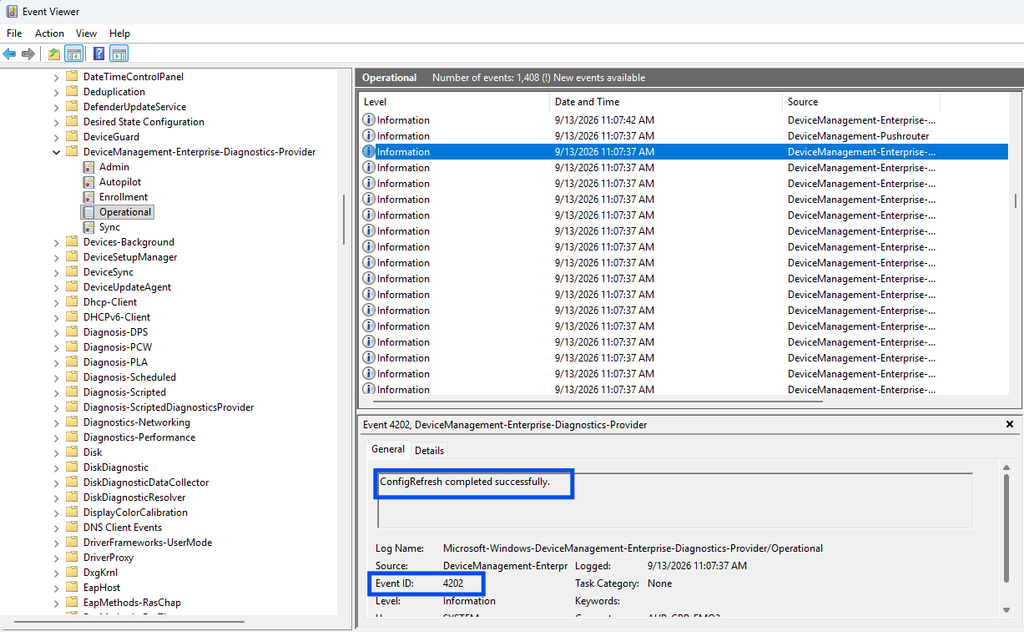
Windows logs Config Refresh activity, making Event Viewer one of the best places to validate policy reapplication and troubleshoot issues.
check the eventviewer logs under Applications and Service Logs > Microsoft > Windows > DeviceManagement-Enterprise-Diagnostic-Provider and look/filter for event ID 4202
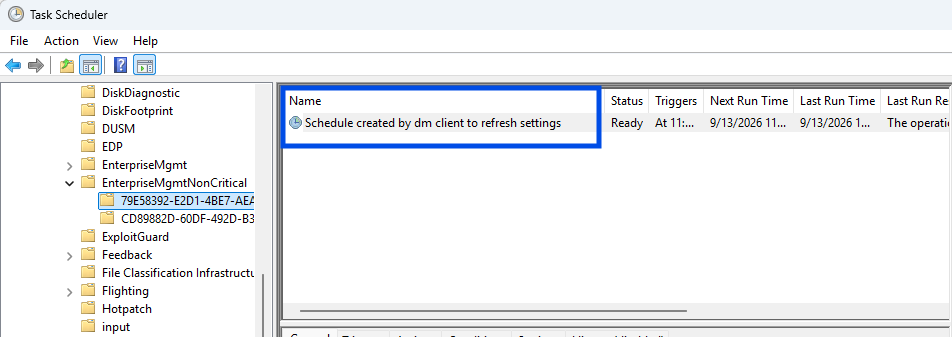
Task Scheduler
A Config Refresh scheduled task is created on supported devices to execute the refresh cycle at the configured interval.
Pausing Config Refresh
One of the newest additions is the ability to temporarily pause Config Refresh directly from Intune.
This is useful when:
Troubleshooting devices
Testing custom configurations
Performing maintenance activities
Investigating configuration conflicts
Administrators can pause policy enforcement for a specified number of minutes, up to 1,440 minutes (24 hours). After the pause period expires, Config Refresh automatically resumes.
Best Practices
Enable It Everywhere
If you’re managing Windows 11 devices with Intune, there is little reason not to enable Config Refresh.
Start With 90 Minutes
This provides a familiar Group Policy-like experience without generating unnecessary processing.
Use for Security-Critical Policies
Settings such as:
Defender configuration
Security baselines
Device restrictions
Attack surface reduction rules
benefit significantly from faster reapplication.
Monitor Unexpected Drift
Frequent policy reapplication can help identify applications or processes that continually modify managed settings.
Final Thoughts
Config Refresh is one of the most important improvements Microsoft has introduced for modern endpoint management. It closes a long-standing gap between Group Policy and cloud-native management by ensuring that managed settings remain enforced, even when devices are offline.
For organizations moving fully to Intune, Config Refresh provides a more resilient and predictable management experience. If you haven’t enabled it yet, it’s worth adding to your Windows 11 configuration baseline today.
Have you already enabled Config Refresh in your environment? If so, what refresh interval are you using and have you noticed any impact on compliance or troubleshooting?
One of the most common complaints from users who travel between countries or work across multiple regions is that their Windows device shows the wrong time zone. While Windows 11 includes an “Set time zone automatically” option, it is not always enabled by default.
In this guide, I’ll show you how to enable automatic time zone detection on Windows 11 devices managed with Microsoft Intune using a combination of:
A Settings Catalog policy to enable Location Services.
An Intune Remediation to enable the Automatic Time Zone service (tzautoupdate).
Why Location Services Matter
Windows can only automatically determine the correct time zone if it has access to the device location.
If location services are disabled, Windows cannot detect that the user has moved to another region and will continue using the previously configured time zone.
Therefore, before enabling automatic time zone updates, make sure Location Services are enabled through Intune.
Step 1: Enable Location Services with Intune
Create a Settings Catalog Policy
Navigate to:
Intune Admin Center Devices → Configuration → Create Policy
Configure:
Platform: Windows 10 and later
Profile type: Settings Catalog
Add the following settings
Search for Location and configure:
Location
Setting
Value
Allow Location
Force Location On
Privacy
Setting
Value
Let Apps Access Location
Force Allow
Depending on your organization’s privacy requirements, you can further restrict which applications are allowed to access location data.
Assign the policy to your target device group and allow it to synchronize.
Step 2: Create an Intune Remediation
Even with Location Services enabled, the automatic time zone feature may still be disabled if the Time Zone Auto Update Service is not configured correctly.
The service responsible for this is:
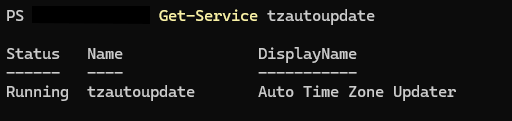
tzautoupdate
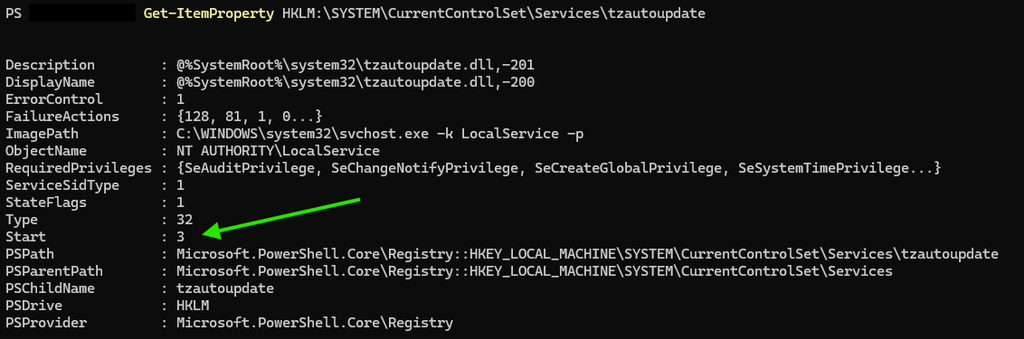
Windows expects this service to be configured as:
Startup Type: Manual (Trigger Start)
Registry Value: Start = 3
We’ll use an Intune Remediation to detect and correct this automatically.
Detection Script
The detection script checks whether automatic time zone updates are already enabled.
$RegPath = "HKLM:\SYSTEM\CurrentControlSet\Services\tzautoupdate"
$Value = (Get-ItemProperty -Path $RegPath -Name Start -ErrorAction SilentlyContinue).Start

if ($Value -eq 3) {
    Write-Output "Automatic time zone enabled"
    exit 0
}
else {
    Write-Output "Automatic time zone disabled"
    exit 1
}
Detection Logic
Returns 0 when automatic time zone detection is enabled.
Returns 1 when remediation is required.
Remediation Script
If the detection script reports non-compliance, the remediation script configures the required settings.
# Enable Time Zone Auto Update service

$RegPath = "HKLM:\SYSTEM\CurrentControlSet\Services\tzautoupdate"

if (-not (Test-Path $RegPath)) {
    New-Item -Path $RegPath -Force | Out-Null
}

Set-ItemProperty -Path $RegPath -Name Start -Value 3 -Type DWord

# Set service startup type to Manual (Trigger Start)
sc.exe config tzautoupdate start= demand | Out-Null

# Start the service if possible
try {
    Start-Service tzautoupdate -ErrorAction SilentlyContinue
}
catch {}

Write-Output "Automatic time zone enabled."
exit 0
What the Script Does
Creates the registry key if necessary.
Sets the startup value to 3 (Manual).
Configures the service startup type to Manual (Trigger Start).
Attempts to start the service immediately.
Returns success to Intune.
Step 3: Deploy the Remediation
Navigate to:
Devices → Scripts and Remediations → Remediations
Select:
Create Remediation Package
Upload
Detection Script → Detection script above
Remediation Script → Remediation script above
Recommended Settings
Setting
Value
Run this script using logged-on credentials
No
Enforce script signature check
No
Run script in 64-bit PowerShell
Yes
Schedule
Recommended:
Hourly for mobile users
Daily for fixed office devices
Validating the Configuration
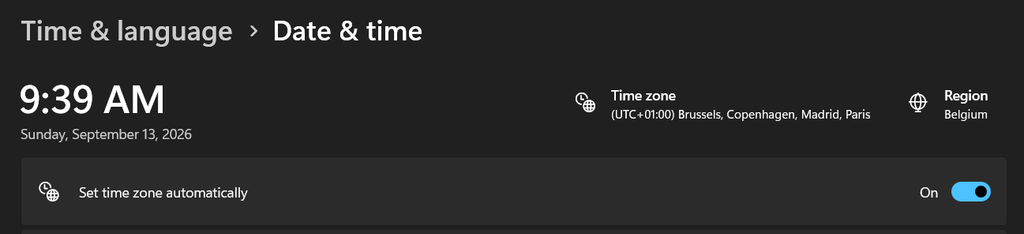
After the policy and remediation have run, users should see:
Enabling automatic time zone detection is a small change that can greatly improve the experience for travelling users, remote workers, and consultants who frequently move between locations.
By combining:
A Settings Catalog policy to enable Location Services
An Intune Remediation to configure the tzautoupdate service
you can ensure Windows 11 devices automatically adjust to the correct time zone without requiring user intervention.
For organizations managing fleets of Windows 11 laptops through Intune, this is a simple but effective quality-of-life improvement that reduces support calls and prevents calendar and meeting scheduling issues caused by incorrect local time settings.
Hi all, last Friday Microsoft released Windows 11 Build 26340.9233 to the Experimental Channel.
My Surface 7th edition with Intel, is acting strang with this build, resumes from standby in a non-responsive state or with explorer/taskbar not running, still working on getting the feedback filed…
Changes and improvements gradually being rolled out
[Modernized AutoPlay experience]
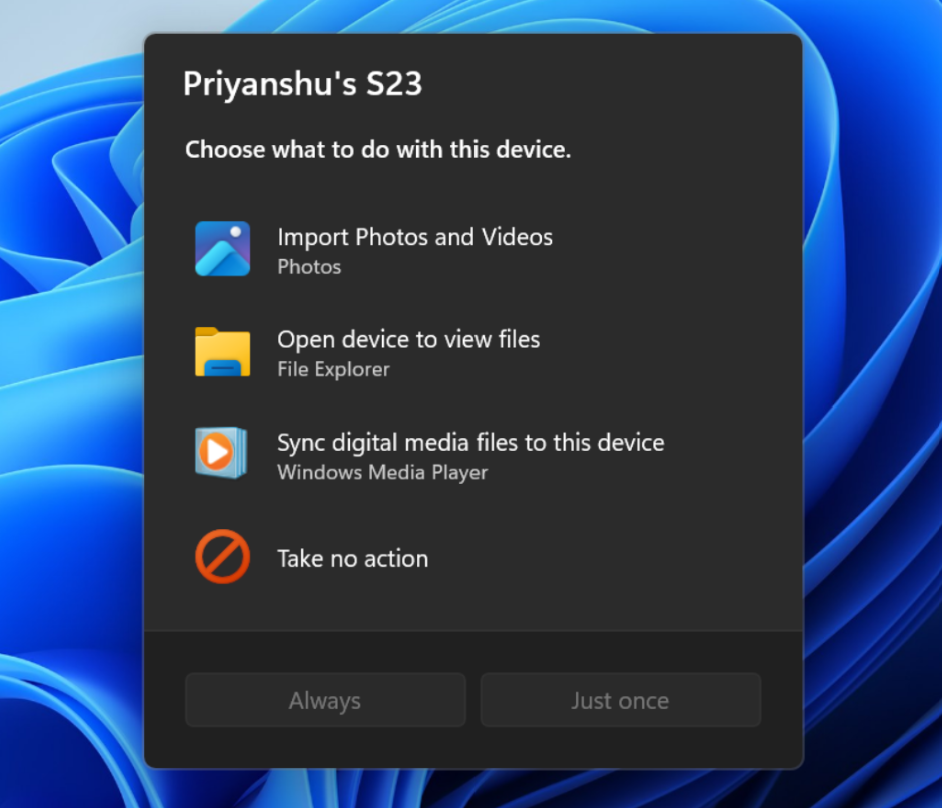
We’ve updated the AutoPlay dialog that helps you choose the preferred experience when devices are connected to your PC, such as a phone, camera, or removable drive. Rebuilt with WinUI, the refreshed experience is more consistent with the rest of Windows, supports dark mode, and continues to provide the familiar AutoPlay actions you use today. The experience is also more responsive to text scaling and display settings. Notifications for this dialog are now docked in the notification center for easy accessThe new AutoPlay experience, shown in dark mode.
[Accessibility]
A simpler way to open apps maximized
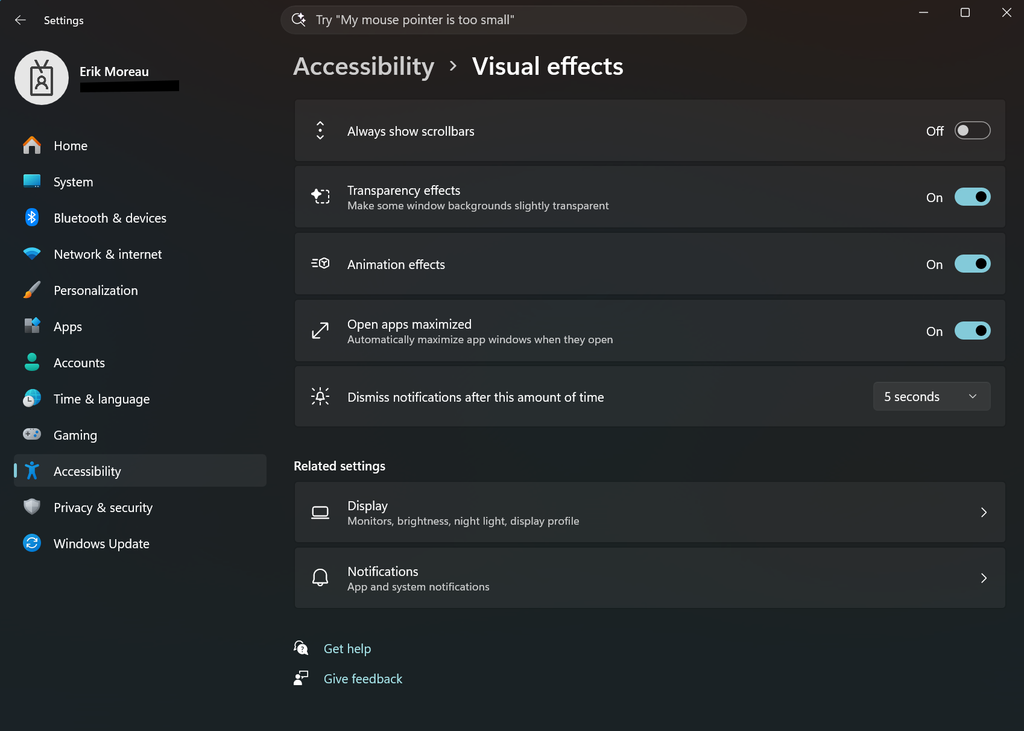
We’re introducing a new accessibility setting, Open apps maximized, that automatically maximizes app windows when they open, so you no longer have to do it yourself every time. This small change removes a bit of everyday friction, whether you use a screen reader or magnification, work in tablet mode, or simply prefer a consistent, full-screen workspace.
To turn it on, go to Settings > Accessibility > Visual effects, and turn on Open apps maximized. Once enabled, Windows maximizes app windows for you as they open. Give it a try, and let us know how it works for you.
UI showing the new Open apps maximized accessibility setting in Settings.
Feedback: Share your thoughts in Feedback Hub (WIN + F) under Accessibility > Visual effects.
[Manage camera, microphone, and location access for desktop apps]
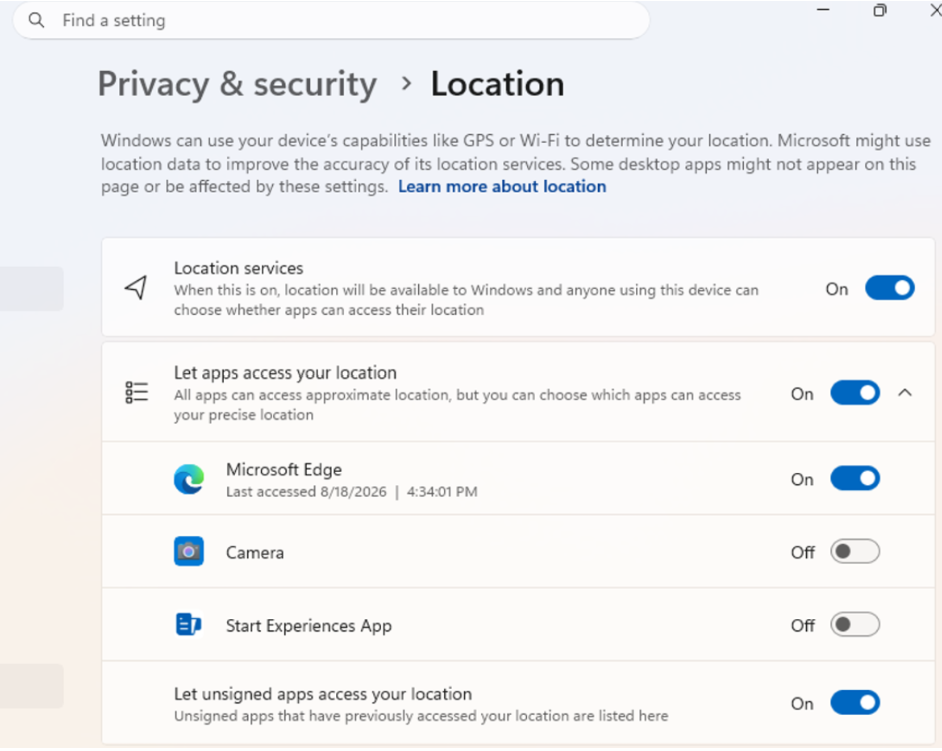
Windows Insiders can now manage camera, microphone, and location permissions for individual desktop apps. Previously, access for traditional desktop applications was managed through a single device-wide setting.
With this update, you can review and control access on an app-by-app basis, giving you greater visibility into which apps are requesting access to sensitive resources and more control over your privacy choices. Our goal is to make privacy permissions easier to understand and manage across the wide range of desktop apps people use every day.
UI showing the new privacy controls for individual desktop apps in Settings.
What’s changing
Allow or deny access for each desktop app individually.
Go to Settings > Privacy & security > Camera, Microphone, or Location to review and manage permissions.
Apps that haven’t yet accessed a resource prompt for permission the first time access is requested.
What stays the same
Existing app permission decisions are preserved.
Apps previously granted access continue to have access.
Apps previously denied access remain denied.
No action is required, and no settings are reset.
Existing enterprise policies continue to function as designed. We’re exploring additional management capabilities.
Notes
Most desktop apps appear with clear app attribution. However, some apps that rely on shared system components, browser-hosted experiences, or similar technologies might appear under a different name than expected.
Some desktop apps might appear as Unsigned if Windows can’t verify publisher information. Only grant access to apps you recognize and trust.
Feedback: Share your thoughts in Feedback Hub (WIN + F) under Settings > Privacy Settings.
[File Explorer]
PDF and non-HTML files downloaded from the web can now be previewed automatically in the preview pane.
[Microsoft Store]
This update provides support for in-app purchases in packaged WinUI 3 apps that require elevation, helping developers offer purchases through Microsoft’s integrated commerce platform.
[Taskbar]
Fixed an issue in the latest builds causing taskbar animations to briefly work and then stop working.
[Input]
Fixed an issue in the latest builds causing the mouse cursor not to be visible in certain apps.
[Other]
Fixed an issue from the last flight causing Settings > Windows Update > Windows Insider Program > Flags to appear empty even though flags were available.
Updated Settings > Apps > Installed apps to show the version number at the top level for packaged apps, as it already does for other apps.
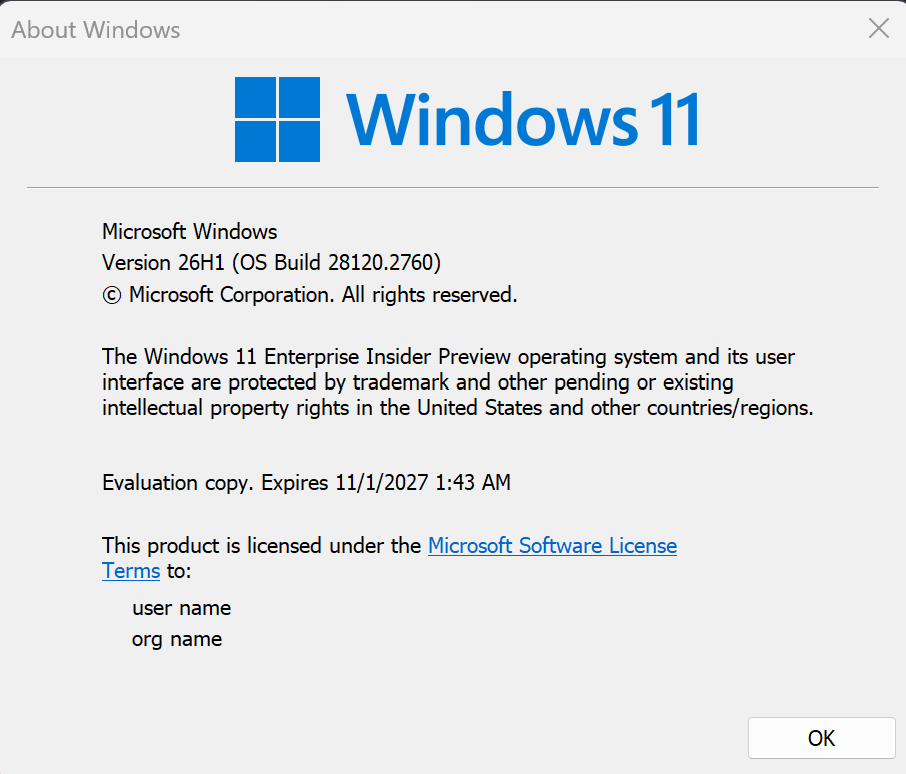
Hi all, last Friday Microsoft released Windows 11 Build 28120.2760 to the Experimental (26H1) Channel.
Changes and improvements gradually being rolled out
Some quick tweaks in this build happy to see the cursor issue fixed
Enjoy this Flight!
[File Explorer]
PDF and non-HTML files downloaded from the web can now be previewed automatically in the preview pane.
[Microsoft Store]
This update provides support for in-app purchases in packaged WinUI 3 apps that require elevation, helping developers offer purchases through Microsoft’s integrated commerce platform.
[Input]
Fixed an issue in the latest builds causing the mouse cursor not to be visible in certain apps.
Known issues
[Known app compatibility issue]
PUBG: BATTLEGROUNDS
Due to a known compatibility issue with PUBG: BATTLEGROUNDS, Windows Insiders might be prevented from launching the game after installing this build. This safeguard has been put in place to help avoid stability issues while we work with the game developer on a fix. We’ll share additional details and timing for the resolution as they become available.
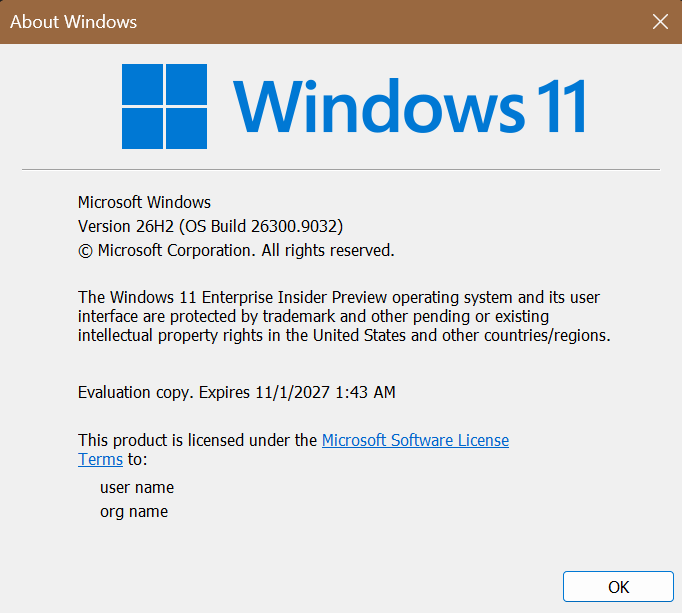
Hi all, last Friday Microsoft released Windows 11 Build 26300.9032 to the Experimental Channel
New Build Expiry date is set to 11/1/2027, upgrades went smooth on all my devices in this channel.
Changes and improvements gradually being rolled out
[Certificate renewal for Windows Insiders]
This build includes the renewed Windows Insider flight certificate. Windows Insider Preview builds use flight certificates that are renewed periodically to help ensure Insider devices remain on supported builds and continue receiving future Insider Preview updates. The current flight certificate expires on August 11, 2026, so please update your device to this build or a later one containing the renewed flight certificate before that date.
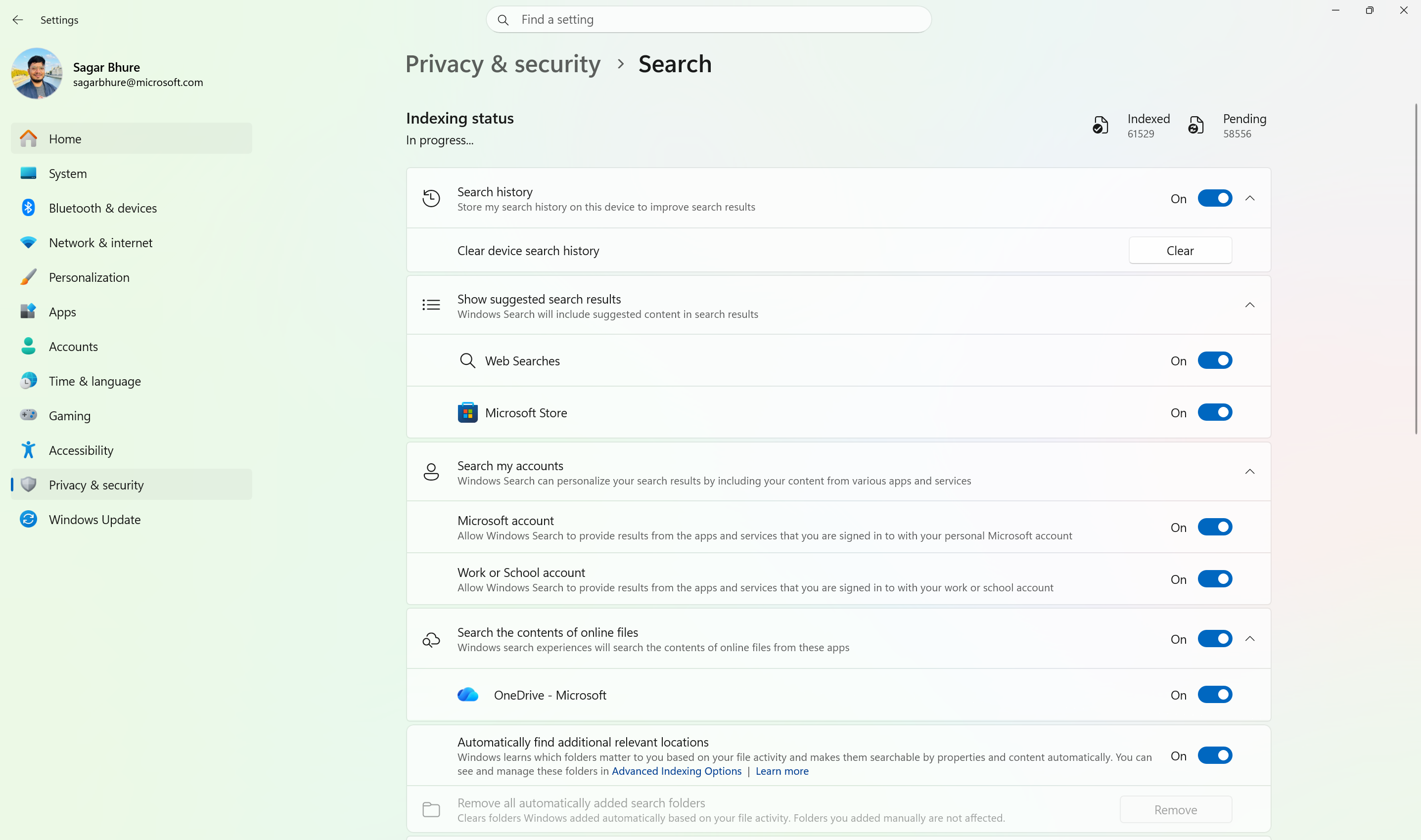
Windows Search can now automatically expand its indexing scope based on your activity, using signals like recent files and frequently accessed locations. This helps ensure that relevant files across your device are discoverable without requiring manual indexing configuration.
To manage this feature, go to Settings > Privacy & security > Search.
Automatically expand search to include relevant files based on your activity.
[Phone Link]
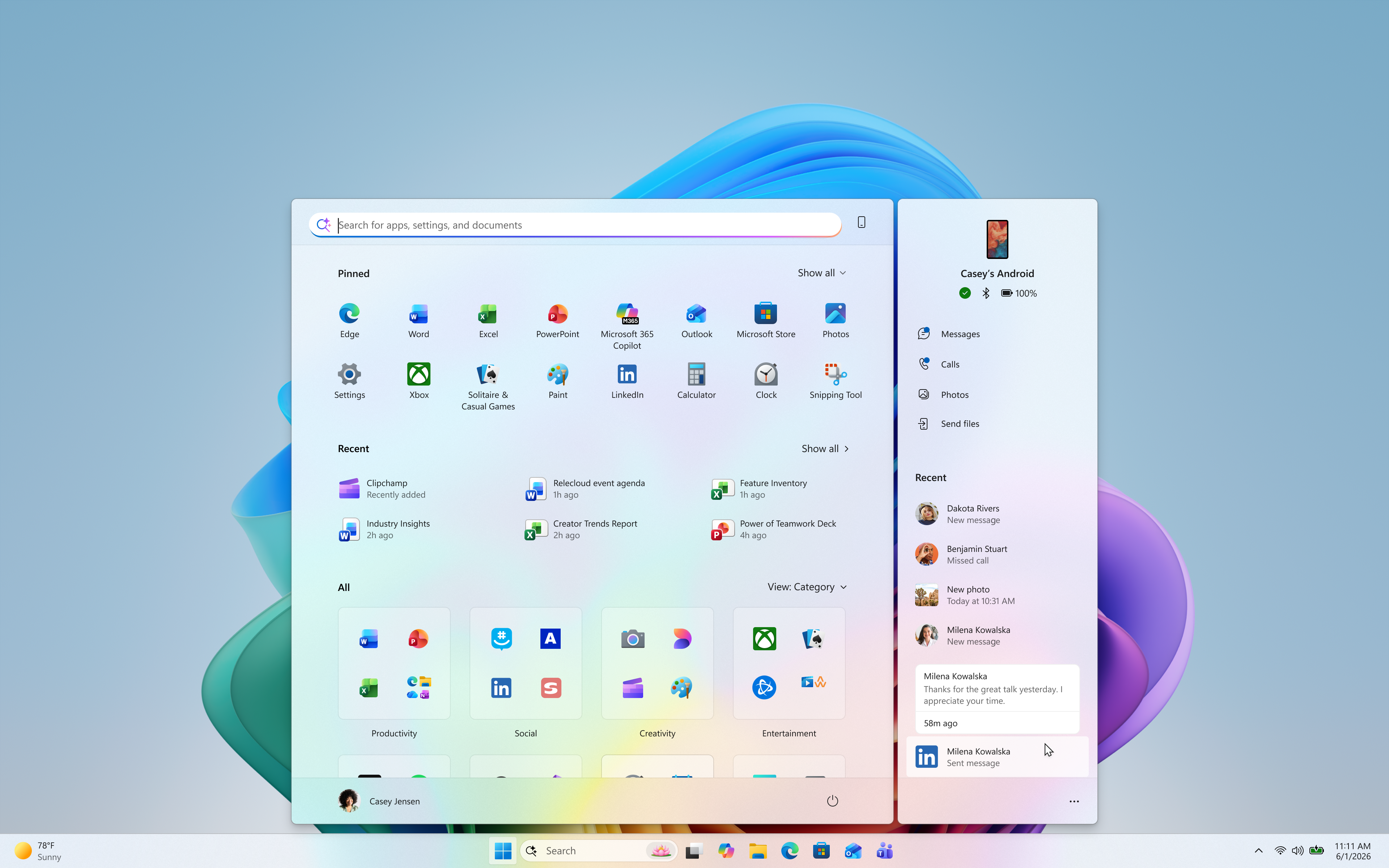
The phone companion experience in Start already helps you keep up with activity from your mobile device. With today’s update, you can see even more at a glance.
Get more from your latest activities: Hover over a recent message or notification in the Recent section to preview its content directly in Start. There’s no need to pick up your phone or open the item to see what’s new.
Whether you’re checking a message or deciding if a notification needs attention, these updates make it easier to stay informed and keep your focus.
Preview messages and notifications from your phone directly in Start by hovering over recent activity.
This experience is gradually rolling out to Insiders on the Experimental channel with a minimum Phone Link build of 1.26021.3.0. Go to Phone Link > Settings > Start menu personalization.
[Settings]
We’ve improved search in the Settings app to help you discover and navigate to settings more quickly. Search now surfaces results from more areas within Settings, with improved ranking to help relevant settings appear higher in results.
[Adaptive hibernate policy]
Updates to the adaptive hibernate policy increase instances of instant-on resumes from Modern Standby and increase battery preservation at the low end of the battery. Noticeable changes include less hibernation while the battery is above 80% and hibernating sooner when the battery is below 10%.
[Start menu]
Fixed an issue causing the Start menu to crash for some Insiders recently when dragging apps.
[Taskbar]
Fixed a recent issue where, when the taskbar was in an overflow state, hovering over the preview thumbnail for an app window in the overflow area would immediately dismiss it.
[File Explorer]
File Explorer Home now preserves the state of sections (expanded or collapsed), so you can pick up where you left off.
We’ve addressed an issue that caused the address bar contents to be cleared when entering edit mode by clicking near the right end of the bar.
We’ve improved the reliability of File Explorer when dragging files to a disconnected network drive.
This update addresses an issue where files stored on a DFS mapped drive could be incorrectly treated as originating from the internet after the device started while disconnected from the network and later reconnected. This could cause File Explorer’s Preview pane to display the message, “The file you are attempting to preview could harm your computer,” or cause files copied from the DFS drive to receive an unexpected Mark of the Web.
[Windows Spotlight]
Made some underlying changes to help improve reliability for Windows Spotlight on the lock screen.
[Storage]
This update fixes an issue that affects File History automatic backups to network shares using Server Message Block (SMB). Backups didn’t work because Windows showed a false “invalid credentials” error when connecting to SMB shares.
Microsoft MVP in Windows and Devices, Technical Supervisor of Field System Engineers,
and passionate about Microsoft technologies.
I share practical knowledge on Intune, Microsoft Defender, Entra ID,
PowerShell, Windows management, security, and modern workplace solutions.
If my content, scripts, presentations, or community contributions have saved
you time or helped solve a problem, consider supporting my work and this blog.