How Windows 365 protects your Microsoft 365 tenant and corporate data when contractors connect from unmanaged endpoints.
The Challenge: Contractors Need Access, But Their Devices Can’t Be Trusted
Most organizations work with external contractors, consultants, freelancers, and temporary staff. They often need access to business applications, documents, and internal resources to do their job effectively.
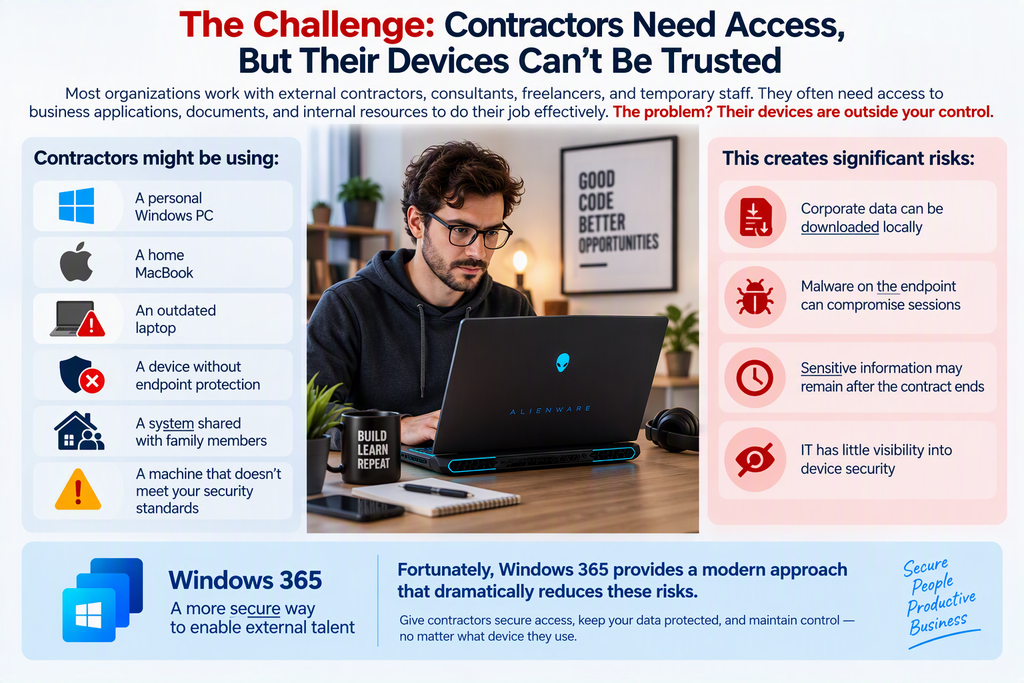
The problem? Their devices are outside your control.
A contractor might be using:
- A personal Windows PC
- A home MacBook
- An outdated laptop
- A device without endpoint protection
- A system shared with family members
- A machine that doesn’t meet your security standards
Traditionally, granting access from these unmanaged devices creates significant risks:
- Corporate data can be downloaded locally
- Malware on the endpoint can compromise sessions
- Sensitive information may remain after the contract ends
- IT has little visibility into device security
Fortunately, Windows 365 provides a modern approach that dramatically reduces these risks.
Introducing Windows 365 Cloud PCs
Windows 365 gives each contractor a dedicated Cloud PC hosted in Microsoft’s cloud. Instead of working directly on their local device, users interact with a secure Windows environment running in Azure.
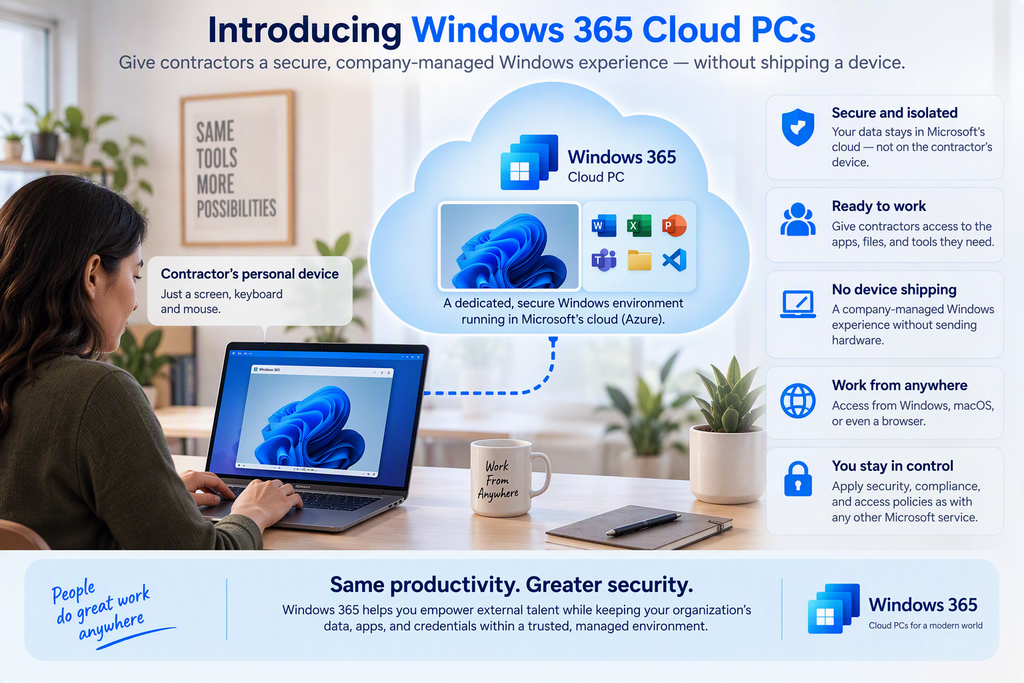
Think of it as giving contractors a company-managed laptop without actually shipping them one.
The user’s personal device becomes little more than a screen, keyboard, and mouse.
The Security Boundary Moves to the Cloud
When a contractor accesses a Cloud PC, the business applications and corporate data remain within the organization’s Microsoft-managed environment.
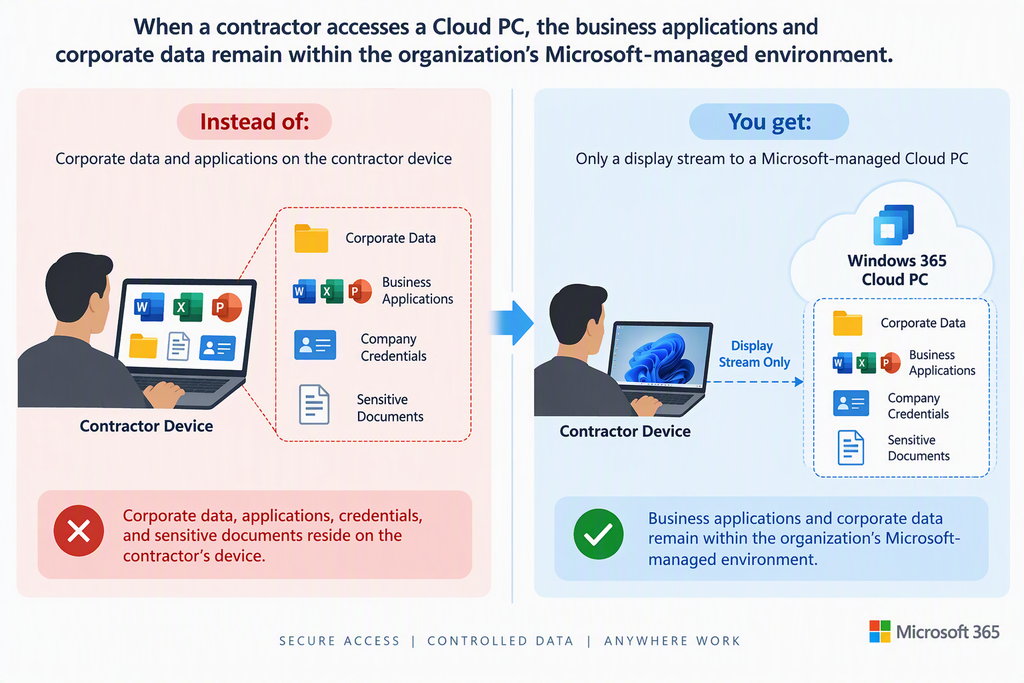
This separation significantly reduces the attack surface.
Data Stays Inside Your Tenant
One of the strongest security advantages of Windows 365 is that business data remains within your managed environment.
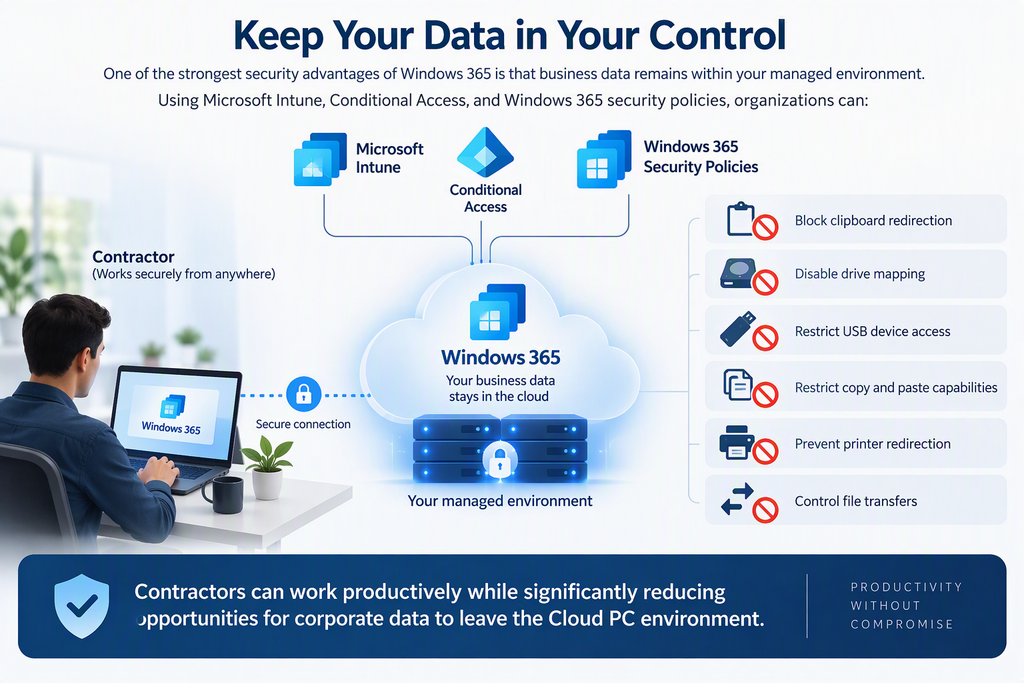
Using Microsoft Intune, Conditional Access, and Windows 365 security policies, organizations can:
- Block clipboard redirection
- Disable drive mapping
- Restrict USB device access
- Prevent printer redirection
- Control file transfers
- Restrict copy and paste capabilities
As a result, contractors can work productively while significantly reducing opportunities for corporate data to leave the Cloud PC environment.
Example
A finance contractor needs access to salary information.
| Without Windows 365 | With Windows 365 |
|---|---|
| Excel files are downloaded to the contractor’s laptop. | Files remain in the Cloud PC. |
| Data may be cached locally. | Data never needs to be stored on the personal device. |
| Files could remain after the contract ends. | Access can be revoked instantly. |
Device Compliance No Longer Becomes a Roadblock
Many organizations struggle with Onboard-Your-Own-Device scenarios because they cannot enforce security standards on external devices.
Windows 365 helps because the managed Cloud PC becomes the trusted workspace.
IT can enforce:
- Microsoft Defender for Endpoint
- BitLocker encryption
- Intune compliance policies
- Security baselines
- Windows updates
- Application control
- Privileged access controls
Even if the contractor’s local device falls outside these standards, the corporate workload remains protected within the managed Cloud PC.
Strong Identity Controls with Conditional Access
Windows 365 integrates with Microsoft Entra ID and Conditional Access.
Organizations can require:
- Multi-factor authentication
- Sign-in risk evaluation
- Location restrictions
- Device-based conditions
- Session controls
- Continuous access evaluation
If Microsoft detects suspicious activity, access can be blocked before the Cloud PC session is established.
Example
A contractor normally signs in from Belgium.
An hour later a sign-in attempt occurs from another region with elevated risk indicators.
Microsoft Entra ID can:
- Flag the login
- Challenge the user with MFA
- Block the session
- Require additional verification
Before the contractor reaches any corporate resources.
Fast Onboarding and Offboarding
Traditional contractor onboarding often includes:
- Ordering hardware
- Shipping devices
- Imaging machines
- Configuration work
- Hardware returns at end of contract
Windows 365 simplifies the process.
Onboarding
- Create contractor account.
- Assign license.
- Deploy Cloud PC.
- Provide access.
A new contractor can often be productive within hours.
Offboarding
When the engagement ends:
- Disable the account.
- Revoke sessions.
- Remove license.
- Delete Cloud PC if required.
Access disappears immediately.
No hardware collection process required.
Reduced Risk from Malware on Personal Devices
Let’s be realistic.
A compromised contractor device remains a risk. Keyloggers, screen capture malware, and browser compromise can still affect the user experience.
However, Windows 365 significantly limits the damage compared to providing direct access from unmanaged devices.
Benefits include:
- Corporate applications run in Microsoft-managed infrastructure.
- Data remains inside the Cloud PC.
- Security tools monitor the Cloud PC continuously.
- Suspicious activity can trigger automated responses.
- Access can be terminated centrally.
Rather than exposing your entire environment to an unmanaged endpoint, you’re exposing a controlled virtual workspace.
Monitoring and Investigation
Because Cloud PCs are enterprise-managed devices, security teams gain visibility that would otherwise be impossible on contractor-owned hardware.
Security teams can:
- Monitor sign-ins
- Investigate incidents
- Review Defender alerts
- Apply compliance policies
- Perform forensic investigations
- Audit user activity
This provides a much stronger security posture compared to traditional BYOD access.
Real-World Scenario
Imagine hiring a six-month external developer.
The developer uses a personal MacBook that is unknown to your IT department.
Instead of granting direct access, you provide:
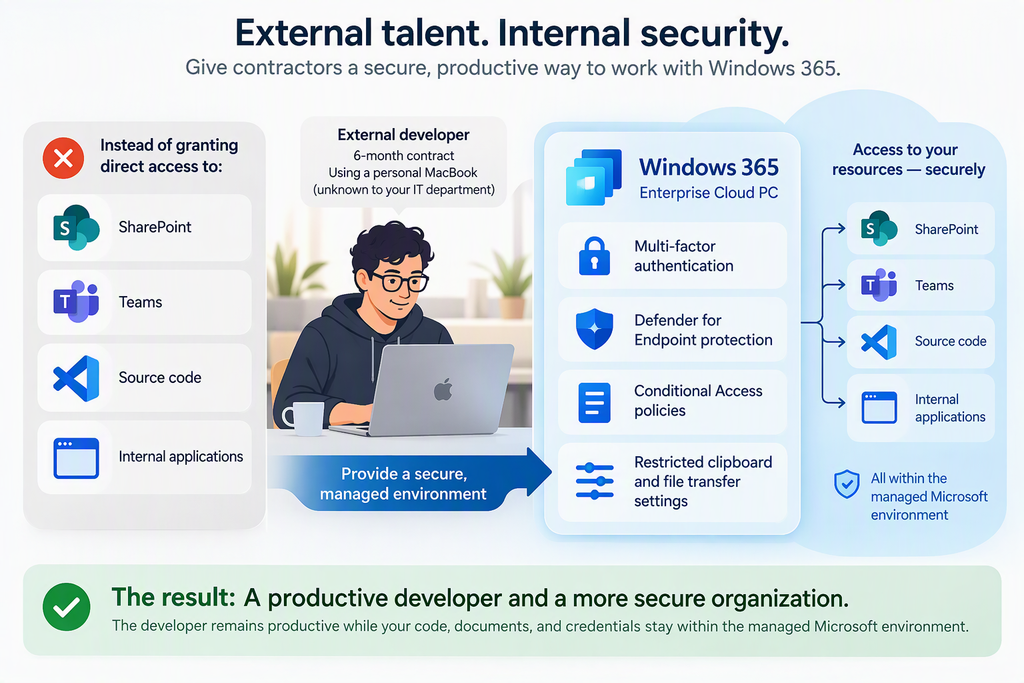
The developer remains productive while the organization’s code, documents, and credentials stay within the managed Microsoft environment.
Best Practices for Windows 365 Contractor Access
To maximize security:
- Use Microsoft Entra ID Conditional Access.
- Require MFA for all contractor accounts.
- Enable Microsoft Defender for Endpoint on Cloud PCs.
- Block unnecessary redirection features.
- Apply Intune security baselines.
- Use least-privilege access.
- Review contractor accounts regularly.
- Automate offboarding processes.
- Monitor risky sign-ins and Defender alerts.
- Separate contractors into dedicated security groups.
Final Thoughts
External contractors are often necessary for business growth, but unmanaged devices should not become a weak link in your security strategy.
Windows 365 offers a practical middle ground. Contractors can work from almost any device while your applications, data, and security controls remain inside a managed Microsoft environment.
Instead of trusting the endpoint, organizations can shift trust to identity, policy, and a centrally managed Cloud PC.
For many organizations, that is one of the most effective ways to balance security, compliance, and contractor productivity in the modern workplace.