Category: Security

Windows 365 for External Contractors: Secure Access Without Trusting the Device

Share this post:

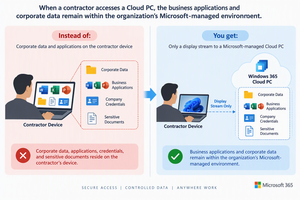
How Windows 365 protects your Microsoft 365 tenant and corporate data when contractors connect from unmanaged endpoints. The Challenge: Contractors Need Access, But Their Devices Can’t Be Trusted Most organizations work with external contractors, consultants, freelancers, and temporary staff. They often need access to business applications, documents, and internal resources to do their job effectively. …
Continue reading

Share this post:

Windows 365: More Flexibility Without Giving Up Security

Share this post:

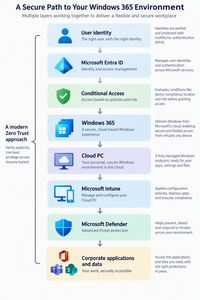
Discover how Windows 365 Cloud PCs combine flexible access with Microsoft Entra ID, Conditional Access, Intune and Zero Trust security to create a modern Windows workplace.

Share this post:

Windows Secure Boot Certificates Are Expiring: What You Need to Know

Share this post:

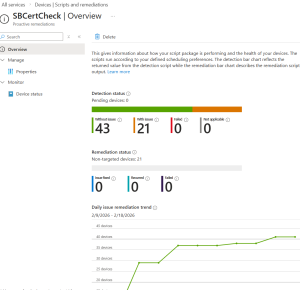
Windows Secure Boot has been a key protection mechanism since 2011. It ensures that only trusted, digitally signed software can run during the earliest stage of your PC’s startup. These protections rely on certificates stored in your device’s UEFI firmware.However, the original Microsoft Secure Boot certificates from 2011 are now reaching the end of their …

Continue reading

Share this post:

How to Use Audit Mode in Windows 11 OOBE to Update a Device Without Full Configuration

Share this post:

When deploying Windows 11 devices, you might need to install updates or drivers before handing them over to end users, without going through the entire Out-of-Box Experience (OOBE) setup. This is where Audit Mode comes in handy. What Is Audit Mode? Audit Mode is a special Windows setup state that lets you boot into the …

Continue reading

Share this post:

Configure Dynamic lock with Microsoft Intune

Share this post:

Dynamic Lock is a security feature in Windows that automatically locks your computer when you step away from it. It uses Bluetooth to detect the proximity of a paired device, such as your smartphone. If the device moves out of range, Windows will lock the computer to prevent unauthorized access. This feature enhances security by …

Continue reading

Share this post:

Enhancing Security with Remote Desktop Services: Limiting Console Session Access

Share this post:

In today’s digital landscape, securing remote access to systems is paramount. One effective method to enhance security is by configuring Remote Desktop Services (RDS) to limit the number of connections, thereby blocking access to the console session via Remote Desktop Protocol (RDP). Here’s a step-by-step guide on how to achieve this using Group Policy. Step-by-Step …

Continue reading

Share this post:

Deleted shortcuts by Attack Surface Reduction rule

Share this post:

Yesterday, January 13th an unintentional impact was triggered by a pattern update (1.381.2140.0) to users that had the ASR rule “Block Win32 API calls from Office macro” set to block mode. The impact was hard to miss, shortcuts pinned to taskbar & in the start menu went missing. The best thing to do was change …

Continue reading

Share this post:

Delete OEM drivers (to enable memory integrity)

Share this post:

On Windows 10/11 when memory integrity cannot be switched on due to incompatible drivers, you can use pnputil.exe to remove the affected OEM drivers Open Windows Security Select Device Security Select the Core isolation details Set the slider to ON to enable core isolation If any incompatible (old) drivers are on the system, you will …

Continue reading

Share this post:

Catching Malware Like Pro – Part 2

Share this post:

In part 1 I wrote about the use of multiple engines at once for 1 file, now let’s see how to quickly check a device for malware using the same technology. The VirusTotal service has an api interface & can be used scripted. Sysinternals a must have toolset for every ITPro has integrated the service …

Continue reading

Share this post:

Catching Malware Like Pro – Part 1

Share this post:

Most IT-Pro’s I talk to on this topic have the same answer when it comes to catching a possible virus on a machine. Important steps to take: Remove the device from the corp network Scan the device with the ‘favorite’ antivirus product If the step above fails to find it, use another antivirus/antimalware product ….. …

Continue reading

Share this post: