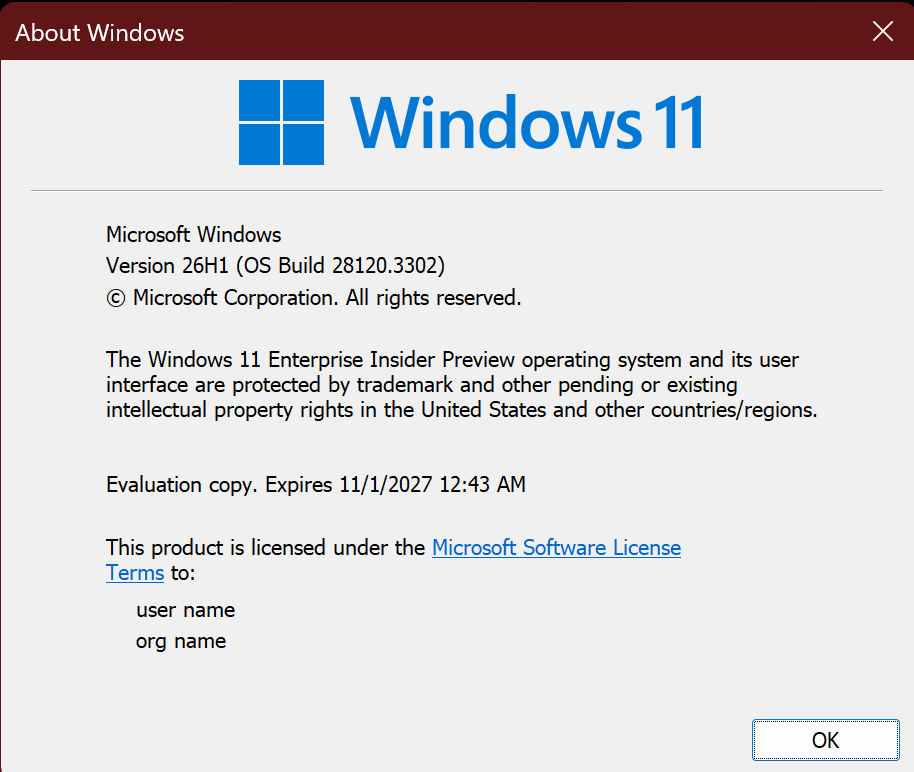
Hi all, last Friday Microsoft released Windows 11 Build 28120.3302 to the Experimental (26H1) Channel
Smooth upgrades for mt devices, Happy Upgrades!
Changes and improvements gradually being rolled out*
- This update includes a small set of general improvements and fixes that improve the overall experience for Insiders running this build on their PCs.
[Start menu]
- This update makes the Start menu more personal with several customizations.
- You can choose between a small or large Start menu, in addition to the Automatic (default) option that’s available today. To customize this setting, go to Settings > Personalization > Start > Start menu size.
- The Recommended section is renamed Recent in the Start menu and on the Start settings page (Settings > Personalization > Start).
- You can now hide your name and profile picture in Start by going to Settings > Personalization > Start > Hide your name and profile picture on Start.
- The Start menu settings page is now redesigned with section-level toggles to independently show or hide Pinned, Recent, and All.
[Manage camera, microphone, and location access for desktop apps]
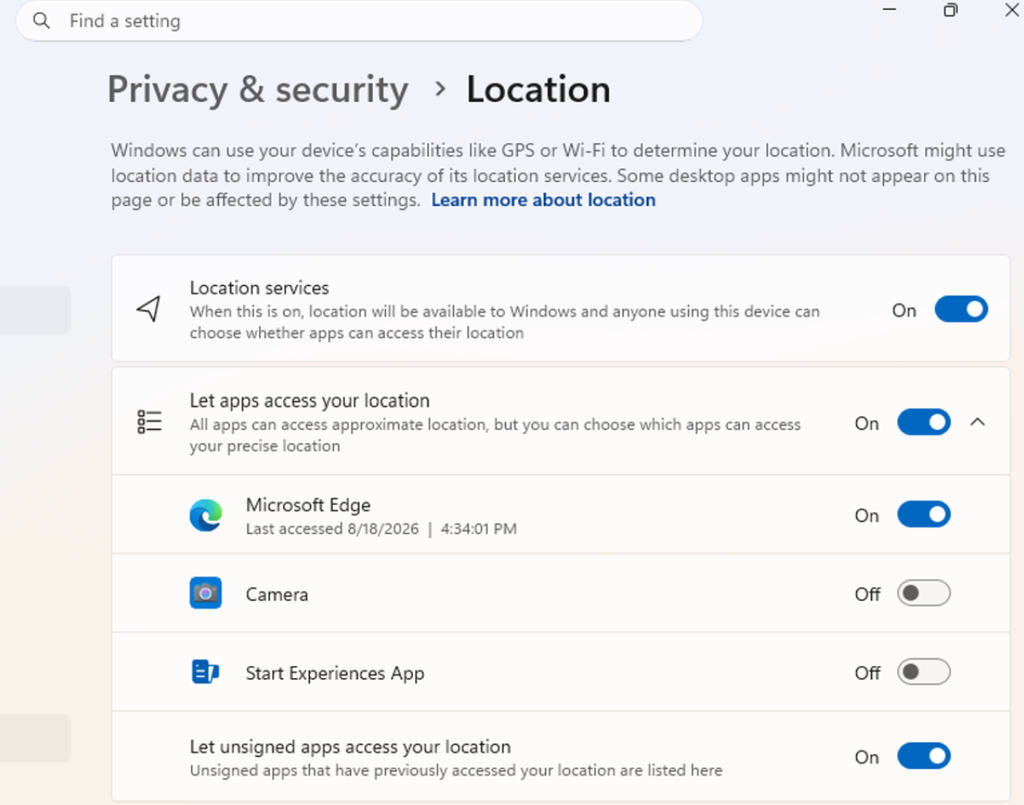
- Windows Insiders can now manage camera, microphone, and location permissions for individual desktop apps. Previously, access for traditional desktop applications was managed through a single device-wide setting.
- With this update, you can review and control access on an app-by-app basis, giving you greater visibility into which apps are requesting access to sensitive resources and more control over your privacy choices. Our goal is to make privacy permissions easier to understand and manage across the wide range of desktop apps people use every day.
What’s changing
- Allow or deny access for each desktop app individually.
- Go to Settings > Privacy & security > Camera, Microphone, or Location to review and manage permissions.
- Apps that haven’t yet accessed a resource prompt for permission the first time access is requested.
What stays the same
- Existing app permission decisions are preserved.
- Apps previously granted access continue to have access.
- Apps previously denied access remain denied.
- No action is required, and no settings are reset.
- Existing enterprise policies continue to function as designed. We’re exploring additional management capabilities.
Notes
- Most desktop apps appear with clear app attribution. However, some apps that rely on shared system components, browser-hosted experiences, or similar technologies might appear under a different name than expected.
- Some desktop apps might appear as Unsigned if Windows can’t verify publisher information. Only grant access to apps you recognize and trust.
Feedback: Share your thoughts in Feedback Hub (WIN + F) under Settings > Privacy Settings.
[Recovery]
- We’re adding a new entry point for Cloud Rebuild under Settings > System > Recovery, making it easier to access the feature from Settings.
[File Explorer]
- We’ve sharpened file thumbnails in the Recommended section on the Home page so they’re crisper and easier to read.
[Magnifier]
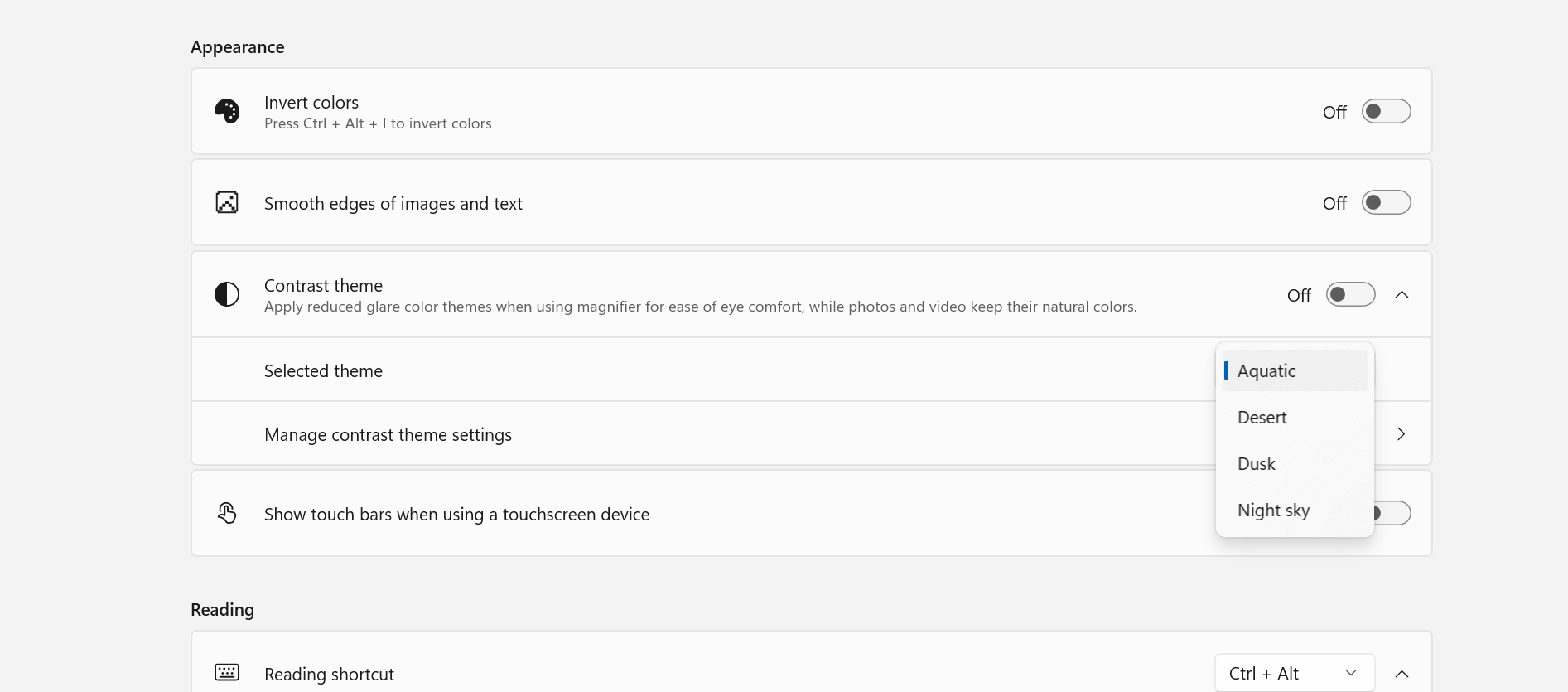
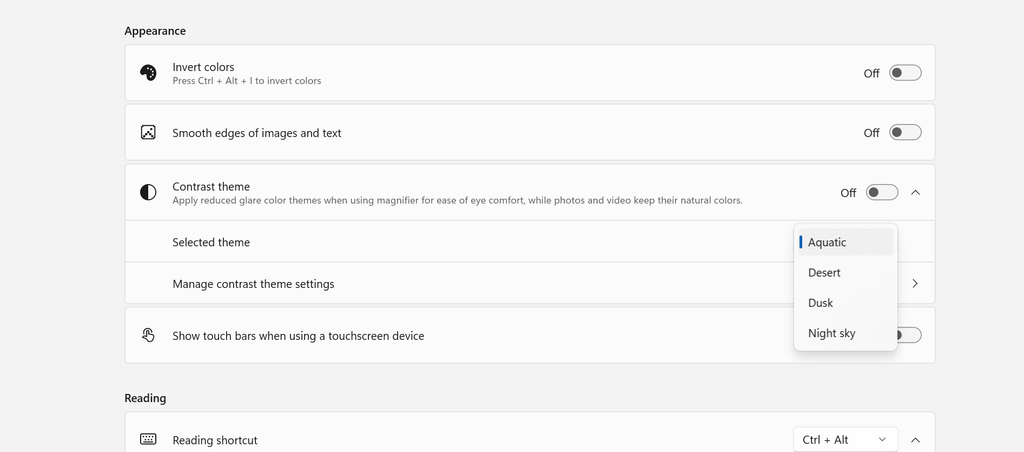
- A new contrast theme toggle for a lower-glare screen. If bright screens are uncomfortable, many people use color inversion to reduce glare. However, inversion changes everything on screen, including photos, charts, and videos. With this update, we’re introducing a new contrast theme toggle in Magnifier.
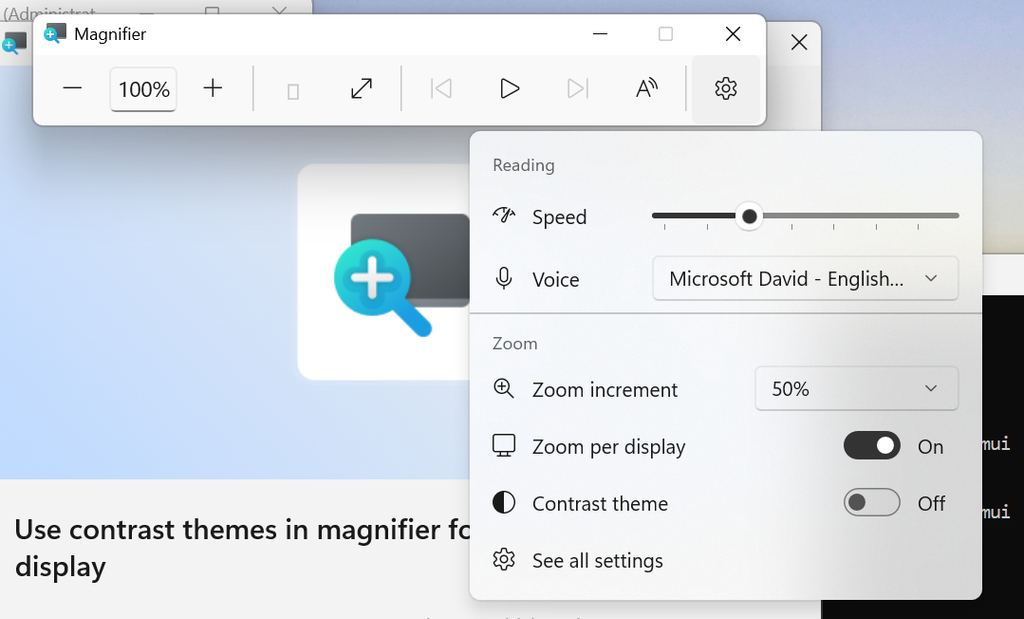
- Reduce glare with a single toggle. Turn on a contrast theme directly from the Magnifier toolbar for a more comfortable viewing experience.
- Choose the contrast theme that works best for you. The dark theme is applied by default, and you can choose which contrast theme the toggle uses under Settings > Accessibility > Magnifier.
- Photos, videos, and charts keep their original colors. Unlike color inversion, the contrast theme recolors the interface without touching your photos, charts, or videos, so they keep their real colors.
- Color inversion is still here. This isn’t a replacement. If you use inversion today, it works exactly as it always has. The contrast theme is a separate, purpose-built option to reduce glare when you want a darker interface without inverting colors.
Magnifier now understands each of your displays
- More and more of the work people do happens across more than one screen. You draft on one display and keep source material open on another. You fill in a form while a reference document sits beside it. Those extra displays can be more helpful when each one can do its own job, and now Magnifier supports exactly that.
- To use this update, set your monitors to Extend in System > Display, not Duplicate, so Windows treats each screen as its own space.
- Every screen keeps its own view at its own zoom. In earlier versions of Magnifier, zooming in stretched a single magnified view across all of your displays, so one screen’s zoom followed you everywhere and screen edges blurred together. With this update, each monitor’s boundary is respected, and each monitor can have its own zoom percentage. Your writing screen can be at 300% while your reference screen stays at 150%, and the magnified view no longer spills from one display into the next. This behavior matters because different tasks and screen resolutions often require different levels of magnification to remain comfortable to read.
Setting the zoom on each screen is easy. Choose whichever method feels natural:
- Move your mouse pointer onto the screen you want to adjust, then press Windows key + Plus (+) or Windows key + Minus (-), or hold Ctrl + Alt and rotate your mouse wheel.
- Set the percentages directly in Accessibility > Magnifier.
- Drag the Magnifier toolbar onto a specific screen to adjust that screen from its on-screen controls.

- Per-monitor zoom is turned on by default. If you prefer the classic behavior where a single zoom spans all of your displays, you can turn per-monitor zoom off at any time from either the Magnifier toolbar or Accessibility > Magnifier. You can turn it back on whenever you like.
Keep the view that matters, right where you need it
- As you move your mouse from screen to screen, the magnified view naturally follows your pointer. Sometimes this might cause you to lose sight of the content that you’re actively working on.
- Viewport locking keeps that view in place. For example, you might be drafting an email based on a section of a document open on another display. Position that display so the paragraph you need is in view, press Ctrl + Windows key + K, and the screen holds its view steady while you move your cursor over to write. The locked screen stays fully live and interactive, so you can glance back, click, or copy from it whenever you need to, and its view stays put until you release it.
- A message appears on the screen when it’s locked, so you always know what’s being held. To lock or unlock a screen, point your mouse at that screen and press Ctrl + Windows key + K again. To release everything at once, press Windows key + Esc to dismiss all locks. To use a different key combination, you can switch the lock shortcut to Ctrl + Alt + P in Accessibility > Magnifier.

[Unicode]
- This update provides Windows text shaping support for Unicode 17.0, helping Windows correctly display and shape newly encoded characters and scripts. Unicode 17.0 added 4,803 characters, including support for four newly encoded scripts: Beria Erfe, Sidetic, Tai Yo, and Tolong Siki. These updates help keep Windows text support current as the Unicode Standard evolves and improve support for languages and writing systems used by people around the world.
[Known Issues]
- We are aware that Recall may be missing or unable to launch on some Copilot+ PCs if performing a clean install on this build. We are working to resolve soon and will provide an update.
source: Flight Hub