
Windows issues don’t always require a full reset or reimage. In Windows 11, Microsoft quietly added a built‑in recovery option that allows you to repair the operating system by reinstalling the same build through Windows Update. It’s fast, supported, and designed to fix stubborn problems while keeping apps, data, and settings intact.
For IT admins and power users, this feature is a valuable middle ground between basic troubleshooting and a full OS reinstall — and it’s often overlooked.
A lesser-known built-in Windows 11 repair option
Most admins know the classic in‑place upgrade using an ISO or setup.exe. What’s less known is that Windows 11 can repair itself by reinstalling the same build via Windows Update — no ISO, no data loss, no reimaging.
This feature is built into Windows 11 and is extremely useful when:
- Windows Update is broken
- System files are damaged
- You see persistent update errors
- You want a clean OS refresh without touching apps or data
What is an in‑place upgrade to the same build?
It’s exactly what it sounds like:
- Windows reinstalls the same Windows 11 version and build
- Uses Windows Update as the source
- Keeps:
- User data
- Installed apps
- Drivers
- Most settings
Think of it as a full OS repair, not a feature upgrade.
When should you use this?
This is a great option if:
sfc /scannowandDISM /RestoreHealthdidn’t fix the issue- Windows Update fails with errors like:
- 0x80073701
- 0x800f081f
- 0x800736b3
- Feature updates refuse to install
- The device is unstable but still bootable
It’s also a solid last step before reimaging.
How to trigger it
Via Settings
- Open Settings
- Go to Windows Update
- Under Fix problems using Windows Update
- Click Reinstall now
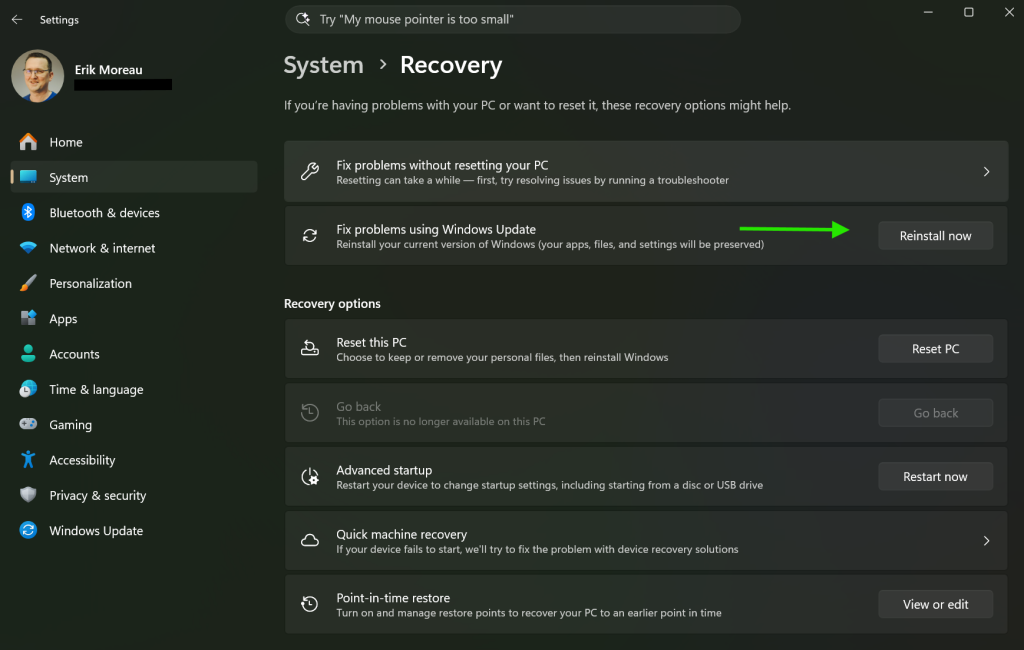
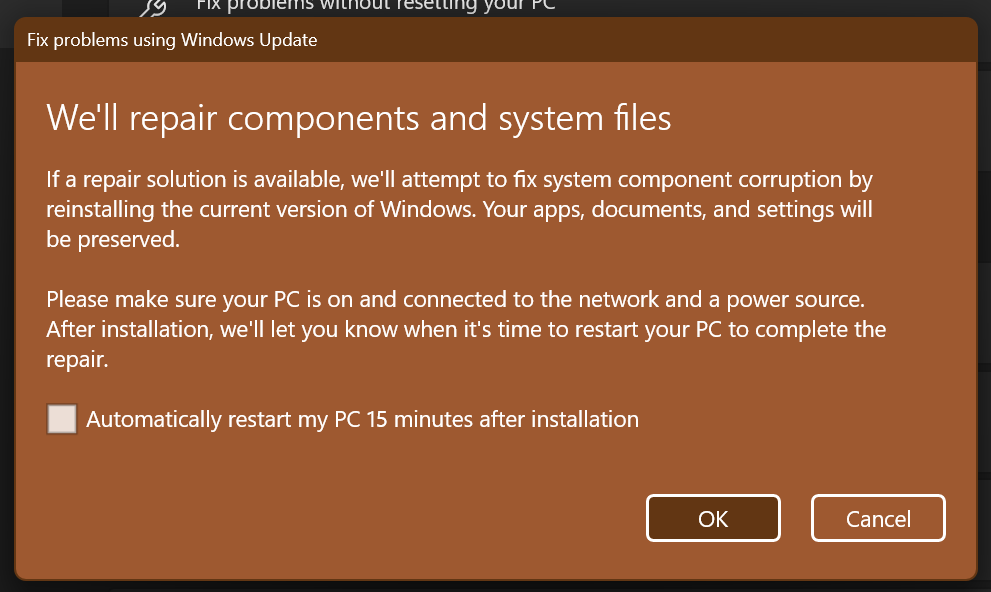
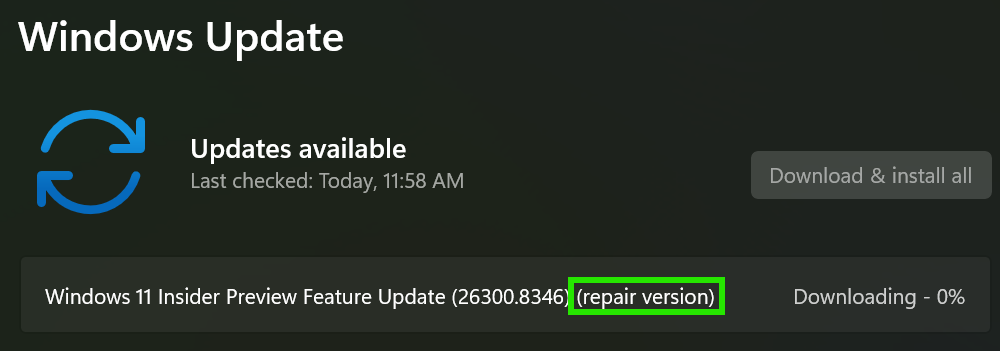
Windows will:
- Download the current OS build
- Reinstall Windows over itself
- Reboot a few times
All without asking for an ISO.
What happens under the hood (high level)
- Windows Update downloads a full OS payload
- Setup runs in repair mode
- System files are replaced
- Component store (WinSxS) is rebuilt
- Update stack is refreshed
From an admin perspective, this behaves very similarly to:
setup.exe /auto upgrade
But fully Microsoft-supported and user-friendly.
What it does NOT do
Important to set expectations:
- ❌ Does not upgrade to a newer feature version
- ❌ Does not remove third‑party software
- ❌ Does not reset all settings
- ❌ Does not fix hardware or firmware issues
It’s a repair, not a reset.
Why this matters for IT admins
For enterprise and MSP scenarios:
- No ISO management
- No task sequences
- No user data backup required
- Can be guided remotely
- Works well on Entra‑joined and Intune‑managed devices
This makes it ideal as a Tier‑2 / Tier‑3 remediation step.
Real‑world tip
If you’re troubleshooting update failures:
- Try normal Windows Update
- Run SFC + DISM
- Use this in‑place repair via Windows Update
- Reimage only if all else fails
In many cases, step 3 saves hours.
Final thoughts
This feature has been quietly improved in Windows 11 and is now stable, fast, and reliable.
If you’re still reaching for ISOs as your default repair method, it’s worth adding this option to your standard troubleshooting playbook.
Simple, built‑in, and effective.