When deploying Windows 11 devices, you might need to install updates or drivers before handing them over to end users, without going through the entire Out-of-Box Experience (OOBE) setup. This is where Audit Mode comes in handy.
What Is Audit Mode?
Audit Mode is a special Windows setup state that lets you boot into the OS without creating a user account or completing OOBE. It’s designed for IT admins and OEMs to customize, update, and prepare devices before finalizing the setup.
Why Use Audit Mode?
- Skip OOBE: No need to create temporary accounts.
- Install Updates: Apply Windows updates, drivers, or apps.
- Run Scripts: Configure settings or apply customizations.
- Capture Images: Ideal for creating reference images with Sysprep.
How to Enter Audit Mode
- Start OOBE: Boot the device into Windows 11 setup.
- Press
Ctrl + Shift + F3: This key combo works at any point during OOBE. - Automatic Restart: The device reboots and logs in automatically as the built-in Administrator.
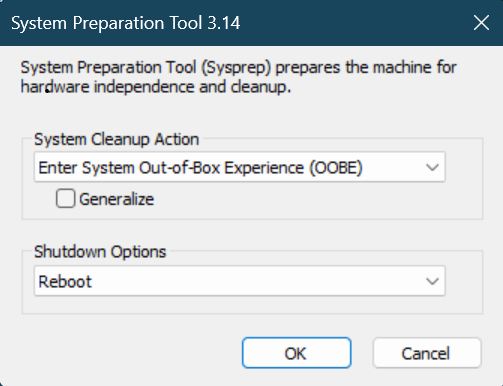
- Audit Mode Desktop: You’ll see the Sysprep tool open by default.
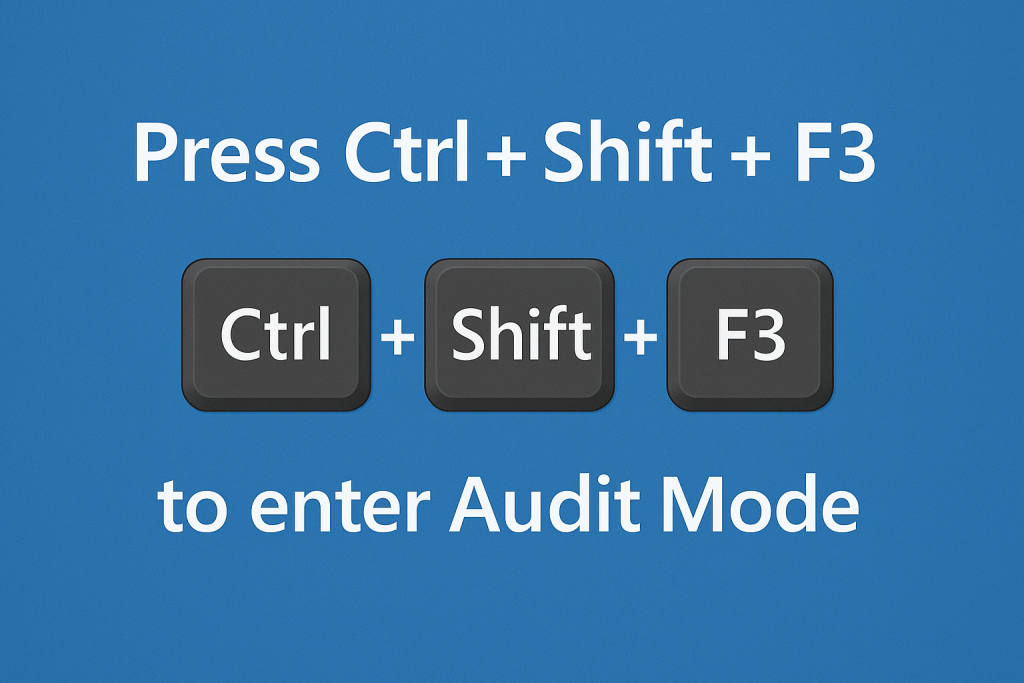
(depending ok the manufacturer of your device you might need to hold down the Fn button too)
What Can You Do in Audit Mode?
- Install Windows Updates:
- Connect to the network.
- Run
Settings > Windows Update
- Add Drivers:
- Use Device Manager or
pnputilfor bulk driver installs. - Use the OEM’s driver tool to update drivers and firmware
- Use Device Manager or
- Install Applications:
- Deploy required apps or scripts.
- Debloat scripts can be used here too
- Apply Custom Configurations:
- Modify registry, set policies, or run PowerShell scripts.
Important Notes
- Do Not Create User Accounts: Audit Mode uses the built-in Administrator account temporarily.
- Exit Audit Mode:
- When finished, run Sysprep with the option:
Enter System Out-of-Box Experience (OOBE)- Generalize (if creating an image, for single device leave unchecked)
- When finished, run Sysprep with the option:
- Device Security: Keep the device secure while in Audit Mode since it auto-logs in as Administrator.
Use Cases
- Pre-installing updates before shipping devices.
- Adding OEM or enterprise drivers.
- Removing Preloaded Bloatware