Hi all, last Monday Microsoft released Windows 11 Build 26340.10013 to the Experimental Channel.
This build was released a few days later than usual, caused some update issues on my devices in this channel but using the repair with Windows update fixed it. on Wednesday.
Changes and improvements gradually being rolled out
[Security]
Windows baseline protection
- Windows baseline protection brings Windows core hardware and system integrity protections together in one place. You can see at a glance whether your device meets a consistent, Microsoft-maintained security baseline from the moment it starts up.
- To check your device, go to Settings > Security > Baseline protection. This feature is rolling out gradually, so you might not see it right away. Learn more: A verifiable security state with Windows baseline protection.
New security experience in Windows Settings
- We’re introducing a new dedicated Security page in Windows Settings, bringing key security experiences and links together in a more modern, approachable, and integrated UX. The goal is to make Settings the primary home for everyday Windows security experiences and reduce the fragmentation customers see today across various surfaces in Windows.
- The new Security page provides a clear starting point for device protection, device encryption, virus & threat protection, and related security settings. Firewall controls are located alongside Network & internet settings, while app & browser protection is located alongside Apps settings. Passkeys and other related settings are also easy to reach from the Security experience.

[Advanced security key management]
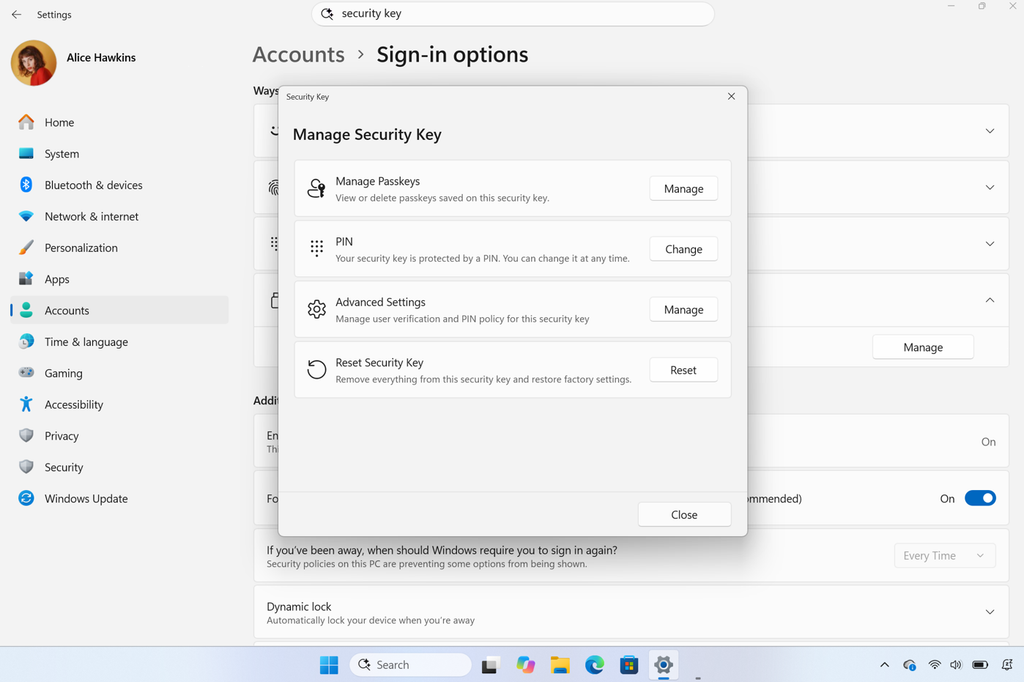
- You can now see the passkeys stored on a FIDO2 (Fast Identity Online 2) security key and remove them one at a time, instead of resetting the entire key. Admins can also configure enterprise settings such as minimum PIN length, always-required user verification, and enterprise attestation.
[Remote Lock]
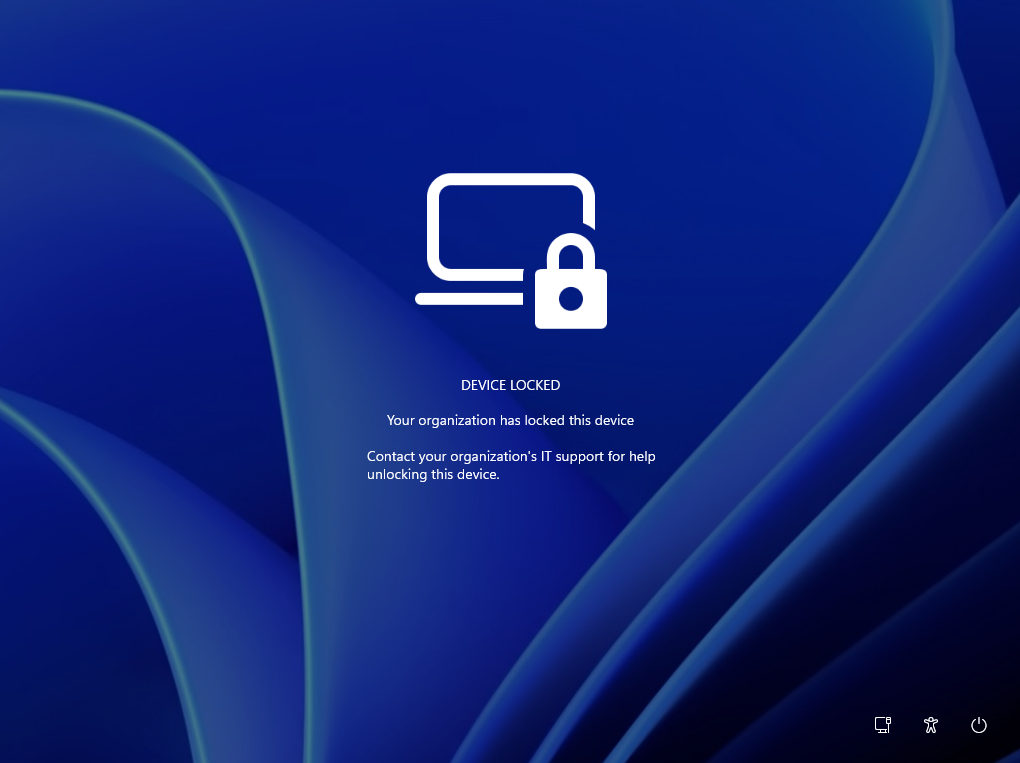
- Remote Lock lets IT lock a lost, stolen or compromised Windows device from Microsoft Intune without wiping it. Windows signs out every active session, hides all sign-in options and shows a Device Locked screen. Nothing is erased: the device stays enrolled and managed; BitLocker stays on, and user data stays in place. Only an admin can lift it remotely, so the user picks up where they left off. Learn more: https://aka.ms/remotelock
What the user sees on a locked device:
[Microsoft Pluton]
- We’re introducing a preview of the Microsoft Pluton Key Storage Provider, enabling developers on supported devices to use the Pluton security processor for hardware-protected cryptographic key storage and operations through standard Windows CNG APIs. Learn more here.
[Taskbar]
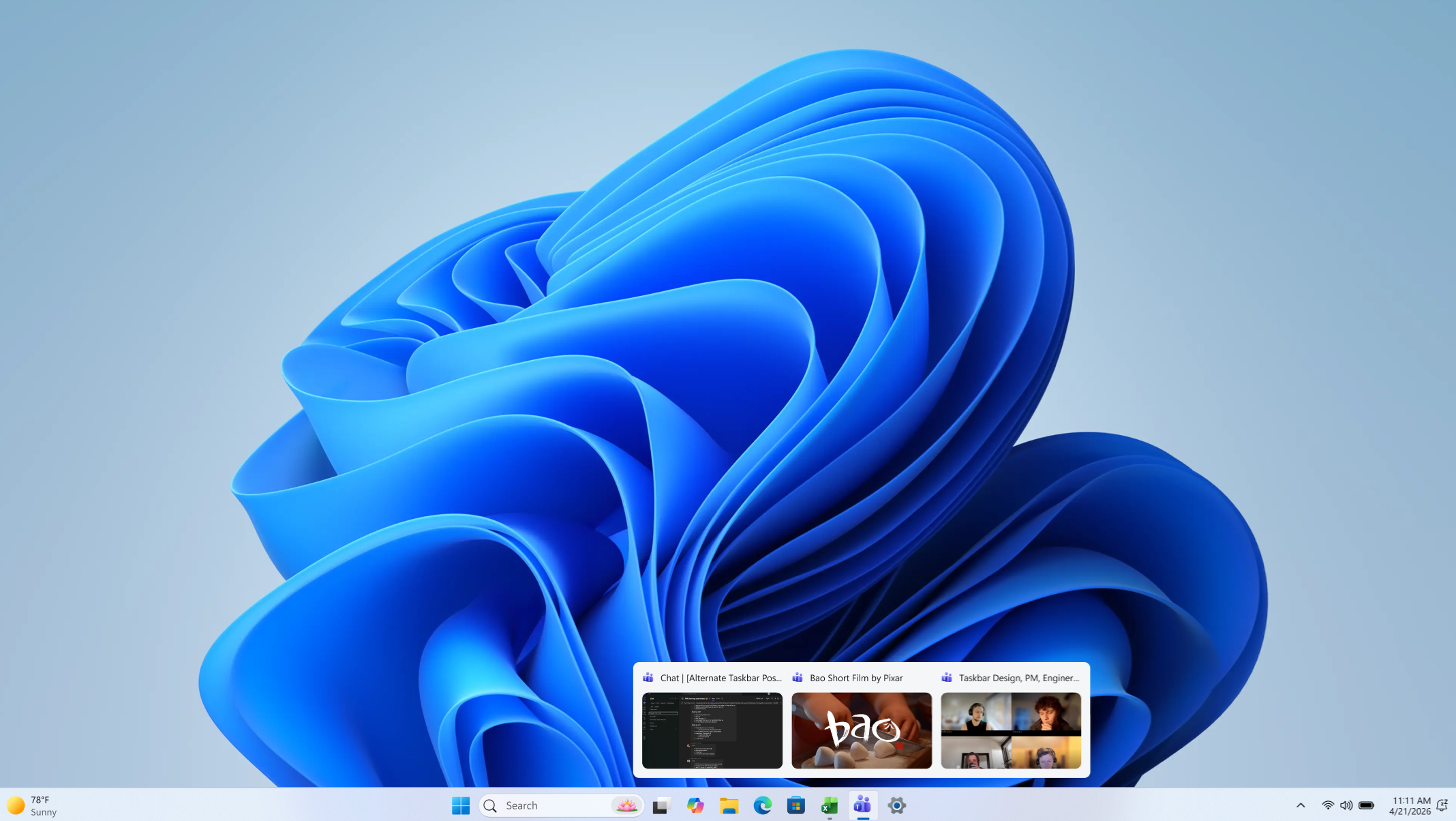
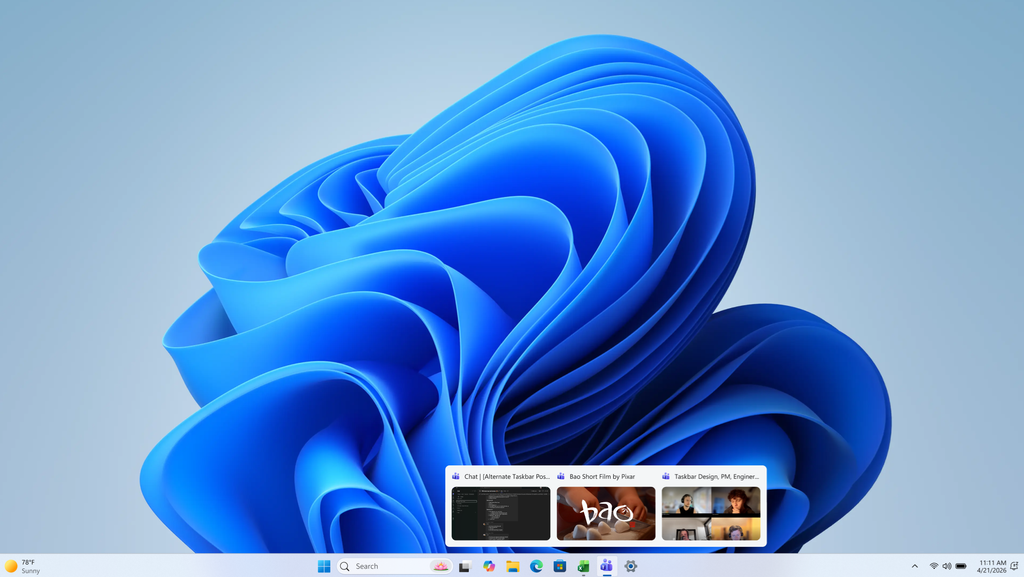
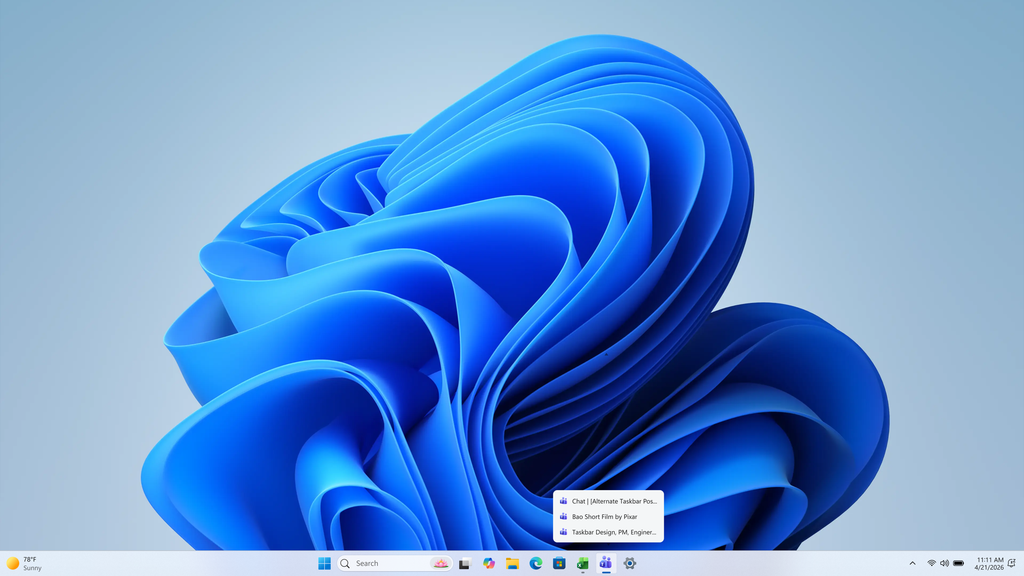
- When you hover over an app on the taskbar, Windows shows previews of its open windows to help you tell them apart and quickly see what’s in each one.
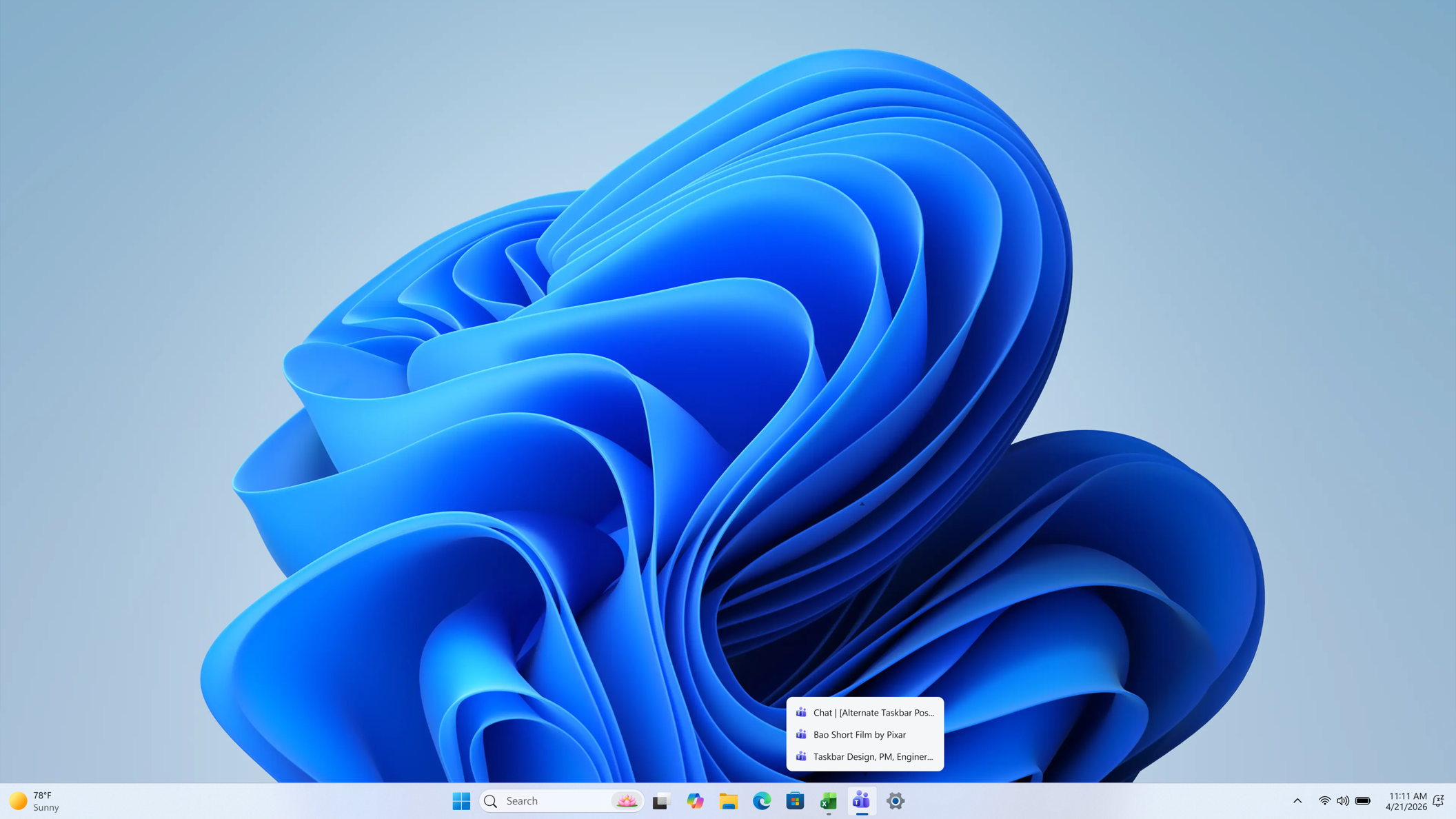
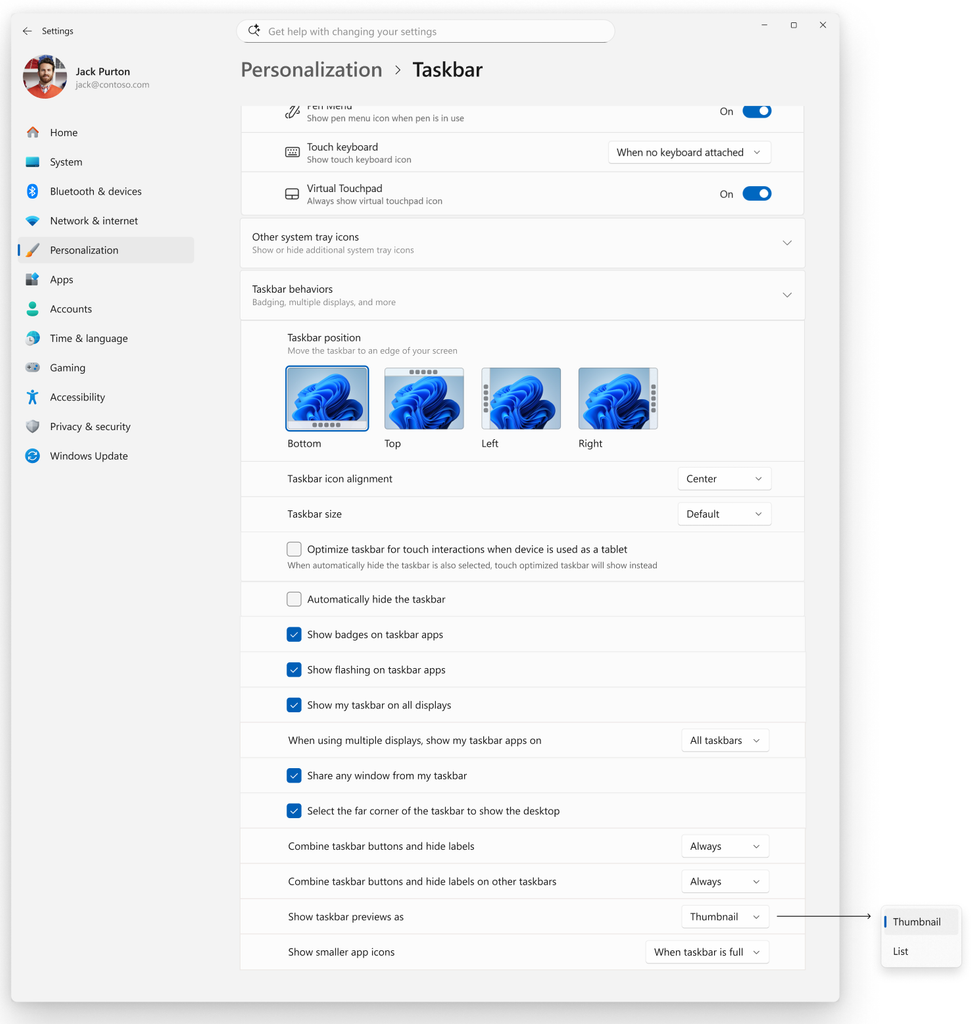
- Now, you can choose to use the list view anytime. When list view is on, hovering over an app on the taskbar shows all its open windows by title in a list instead of as previews.
- To turn on list view, go to Settings > Personalization > Taskbar.
[BitLocker]
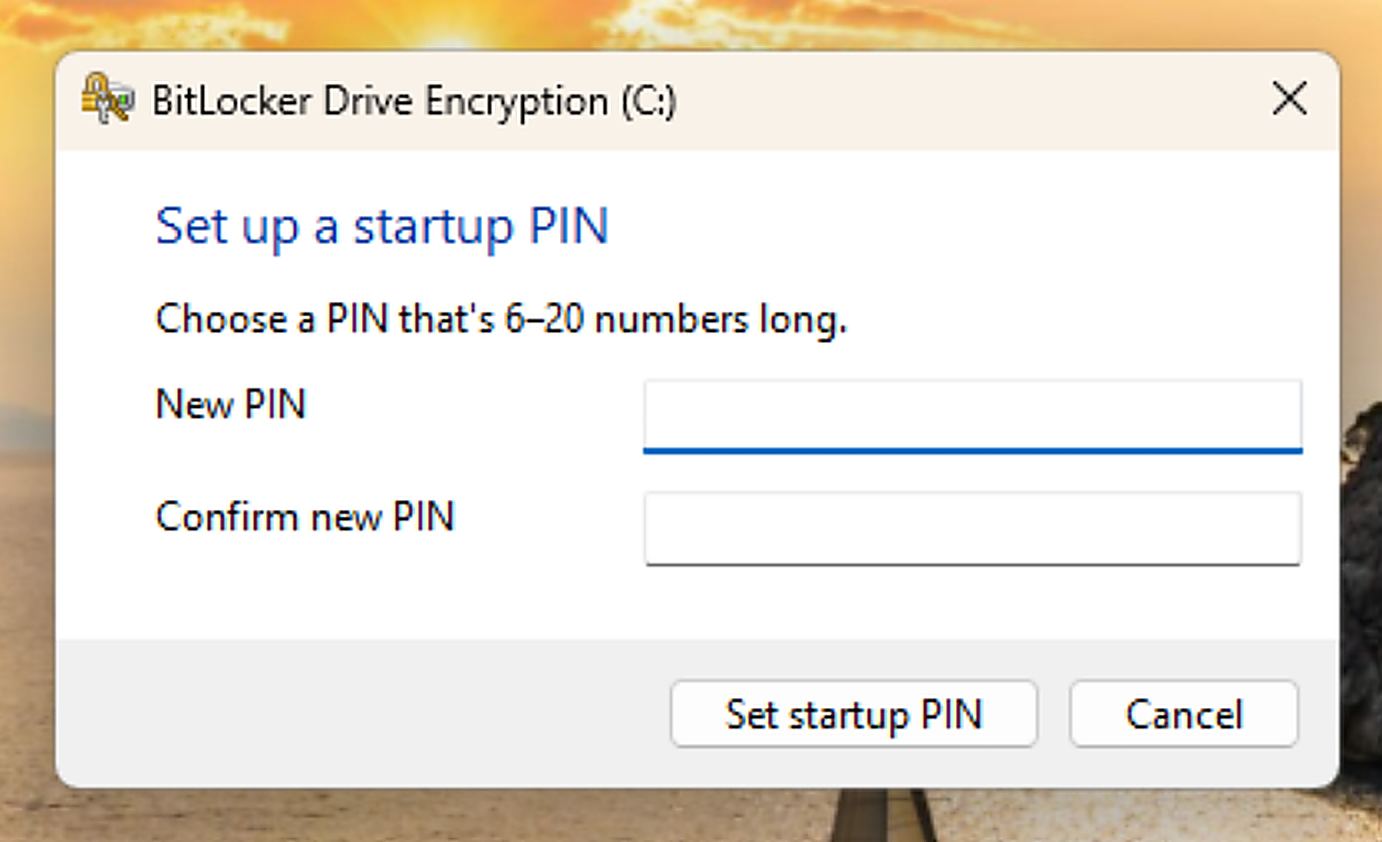
- Standard users can now set a BitLocker preboot PIN. Before this change, users without admin rights couldn’t add the TPM+PIN protector. Now, standard users on managed devices can add the PIN themselves.
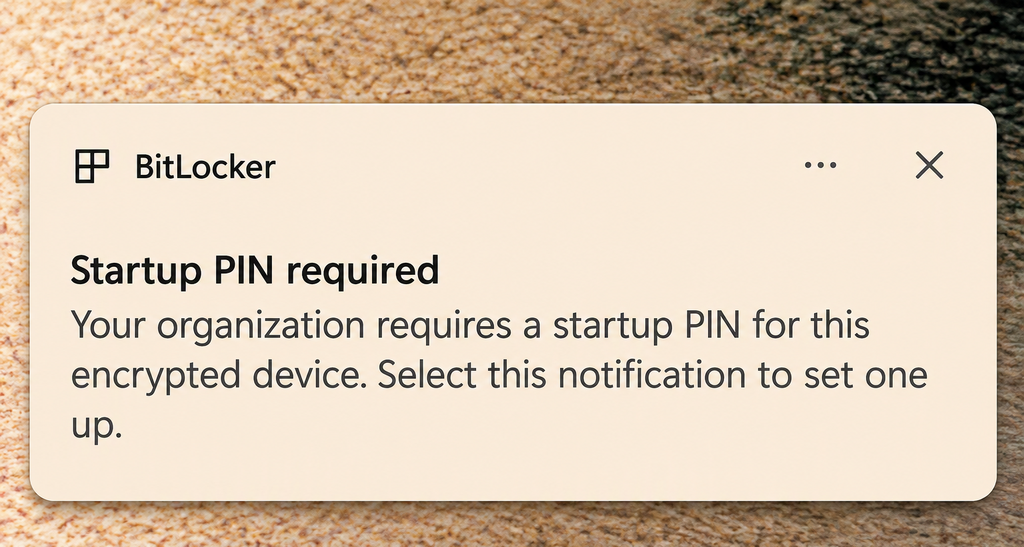
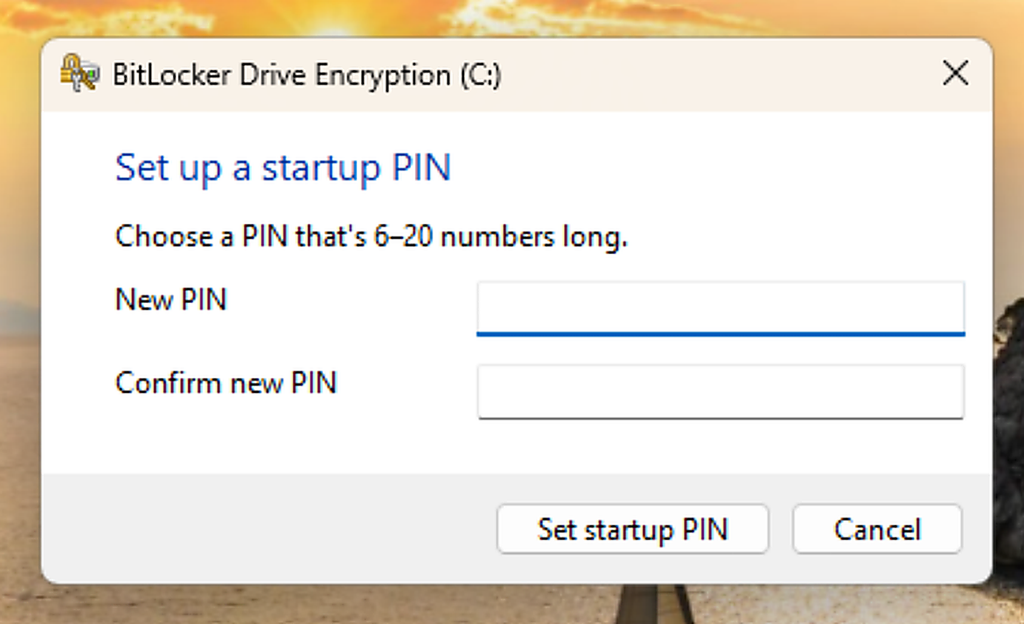
- How it works: When the policies below apply to a device that doesn’t have a PIN yet, you get a notification asking you to add one. Selecting the notification opens a window where you can set the preboot PIN.
Set it up
In Microsoft Intune or another device management solution, configure these existing BitLocker policies to require TPM+PIN for non-administrators:
| Policy | Value |
|---|---|
AllowStandardUserEncryption | ON |
AllowWarningForOtherDiskEncryption | OFF |
RequireDeviceEncryption | ON |
SystemDrivesRequireStartupAuthentication | ON |
Important
Target policy that requires startup authentication and device encryption only to your standard user test group that has this feature enabled in the Windows Insider Program.
Standard users without this feature can’t add the required TPM+PIN protector, and device encryption subsequently fails with this configuration. Standard users without this feature who are already encrypted with TPM only report as non-compliant with policy.
- All users targeted with these policies get a notification to add a PIN to their device if they don’t already have one. Selecting the notification opens a window where you can set the preboot PIN.
[Magnifier]
Magnifier, the way you work: now with touch and touchpad
- Magnifier already works with your keyboard, mouse, and scroll wheel. Now it also supports touchpad and touch gestures, so you can zoom and move around in whatever way feels most natural to you.
- Before you start: Make sure Magnifier is running. Press Windows key + Plus (+) to turn it on. The gestures below work while Magnifier is on.
On a touchpad
- Zoom in or out: Swipe up with three fingers to zoom in or swipe down to zoom out.
- Pan around the screen: Move one finger as you normally would, and the magnified view follows your pointer.
- Toggle between 100% and your previous zoom level: Tap with three fingers.

On a touchscreen
- Pan around the screen: Drag with three fingers.
- Zoom in or out: With three fingers, tap once, then tap again and keep your fingers down. Without lifting your fingers, drag up to zoom in or down to zoom out.
- Toggle between 100% and your previous zoom level: Double-tap with three fingers.

- Both gesture sets are on by default. To turn either one off, go to Settings > Accessibility > Magnifier and turn off Control Magnifier with touchpad gestures or Control Magnifier with touch gestures.
Help, what’s new, and feedback, right from the toolbar
Magnifier now has a help (?) button on its toolbar. Select it to:
- Get help: Open the Magnifier support articles.
- See what’s new: Catch up on the latest Magnifier features.
- Send feedback: Share your thoughts in Feedback Hub.
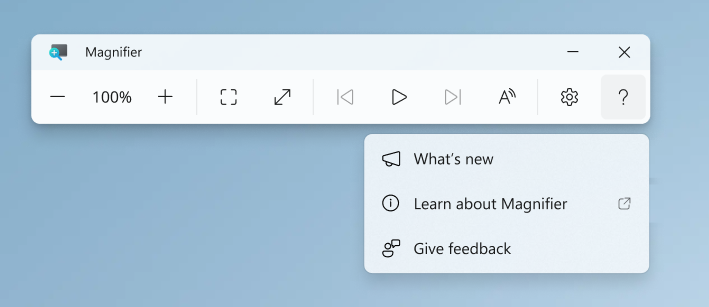
Whether you’re trying Magnifier for the first time or use it every day, share your feedback to help improve the experience.
[Secure switch from MSA to Local account]
- Users who switch from MSA to local account from settings would be always prompted to back up their BitLocker recovery key with updated instructions in order to prevent any data loss.
[Removal of Offline Maps]
- Following the April 2025 announcement of the upcoming deprecation of the Windows UWP Map control and Windows Maps platform APIs, we are removing the Offline Maps feature and related UX from Windows Settings. With the upcoming removal of the Maps control and APIs, the offline maps feature will no longer be functional. The removal includes these features in Windows Settings:
- Offline Maps – located under Settings > Apps > Offline Maps
- Maps storage – located under Settings > Storage > Local Disk
- For resources related to the upcoming removal of the Maps control and platform APIs, see this documentation.
[Remote desktop]
- Fixed an issue where Remote Desktop Protocol (RDP) connections might fail on the client due to a certificate mismatch after the latest flights.
[Windows Spotlight]
- Fixed a recent issue where the Explore Background option in the context menu for Windows Spotlight for your desktop background wasn’t working.
[Input]
- Fixed an underlying issue which was causing the mouse cursor to be unexpectedly invisible in a few different scenarios in recent flights.
- Improved reliability of configuring voice typing settings.
[Known issues]
- Reports from Insiders that the CPU speed shown in Task Manager no longer updates after the latest flights are under investigation.
source: Flight Hub