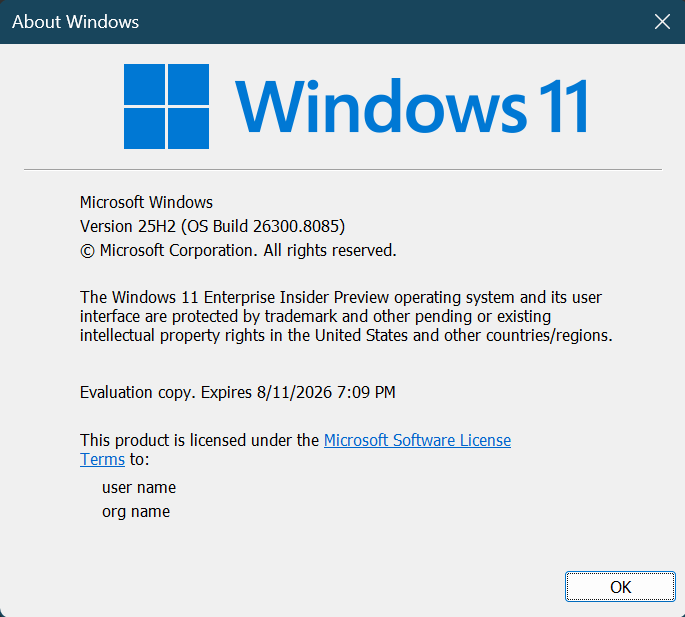
Hi all, Yesterday Microsoft released Windows 11 Insider Preview Build 26300.8085 (KB 5079483) to the Dev Channel.
Great new features and a lot of announcements on the Windows Insider Blog
Love the Pointer Indicator, very useful in demo’s too
The New Feedback Hub looks awesome! Smooth and clear to use, slight getting used to when you’re used to the old interface but that’s progress.
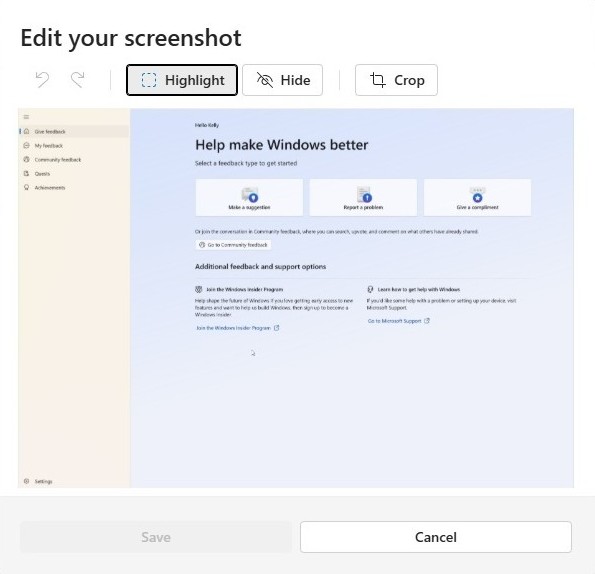
Screenshots can now be edited and have highlight, blur and crop tools build in.
And very nice, an option to give a compliment on what you like and works great!
Upgrades went smoothly (even on the resto hotspot where I was having dinner) Happy Upgrades!
Changes and Improvements gradually being rolled out with toggle on*
[Pointer Indicator: Accessibility setting for low vision Windows users]
We are resuming the rollout of the Point Indicator Accessibility setting. This feature enables low vision users on Windows to easily locate and use their cursor to increase productivity and efficiency when using a Windows device.
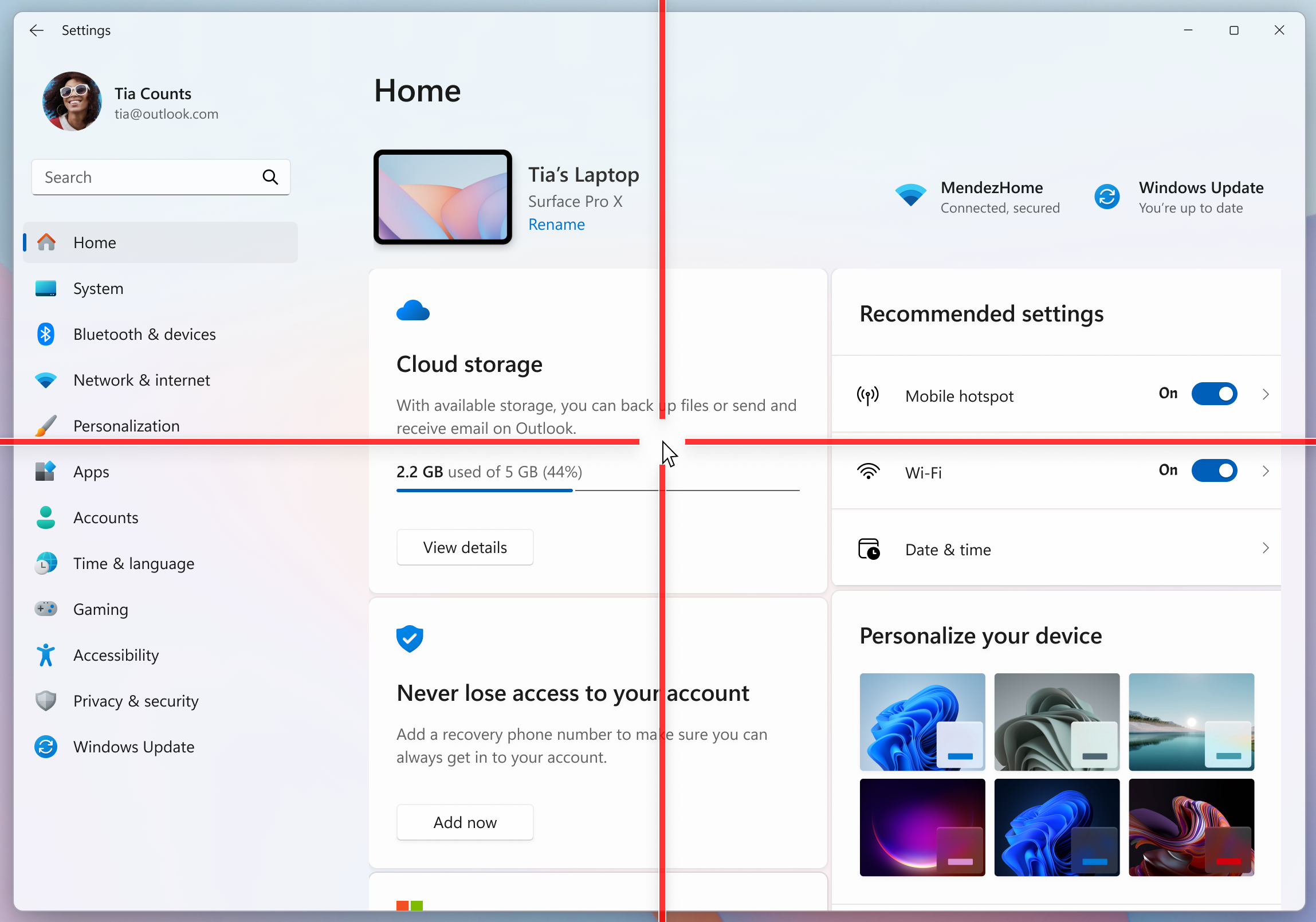
To enable this experience, go to Settings > Accessibility > Mouse pointer and touch and enable the Pointer indicator setting. You can also search for the setting by name. When the setting is enabled, you can toggle it on/off with the keyboard shortcut, Win + Ctrl + Shift + X.
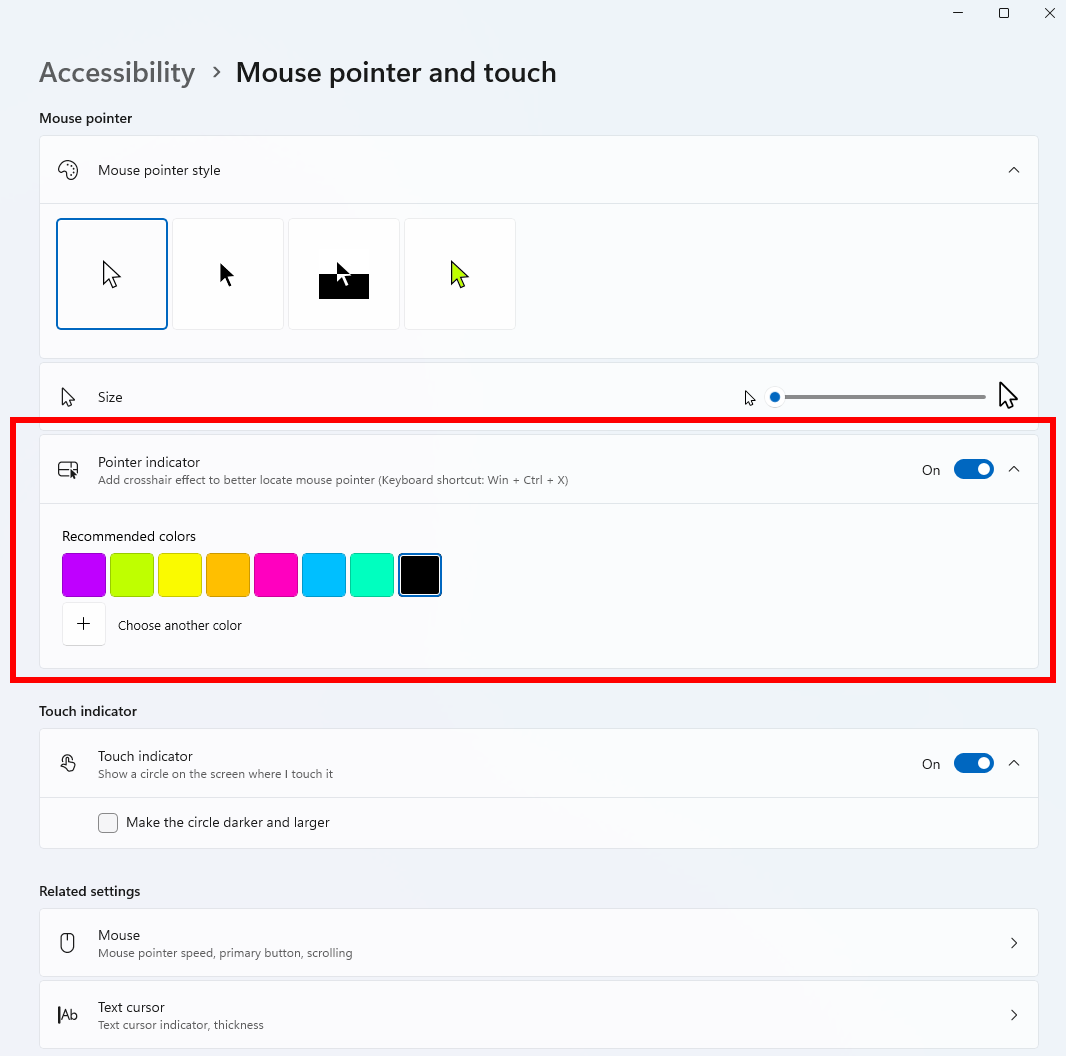
We welcome your feedback about the cursor and crosshair experience with this accessibility setting.
FEEDBACK: Please file feedback in Feedback Hub (WIN + F) under Accessibility > Accessibility Settings.
[Windows Magnifier]
- Windows magnifier can now magnify protected content.
[Network and Sharing]
- We fixed an issue where the Network and Sharing Center could incorrectly display two active Wi-Fi connections after switching from one Wi-Fi network to another. The Network and Sharing Center now correctly reflects a single active Wi-Fi connection when you connect to a new network.
[Input]
- Improved explorer.exe reliability when closing the input flyout.
- Improved reliability of configuring fluid dictation option in voice typing (Windows key plus H) settings.
[Feedback Hub]
Introducing the new Feedback Hub, bringing a refreshed, modernized experience available as an app update today for Insiders in Dev and Canary.
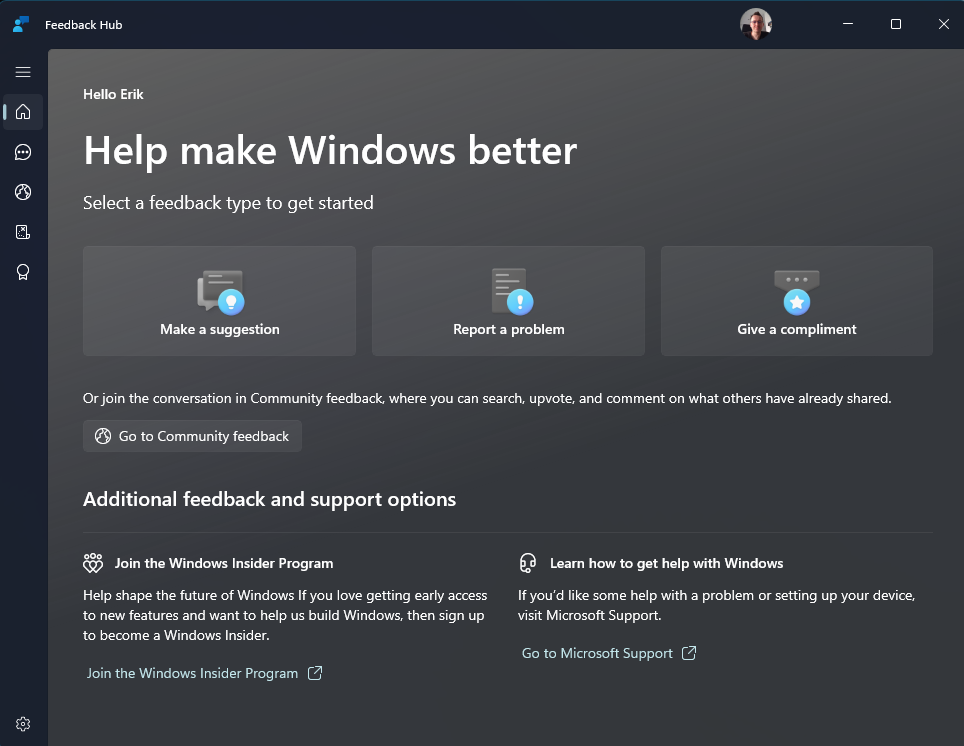
What’s new in Feedback Hub
- Simpler feedback submission flow: Feedback is now submitted using a single unified template, with the added ability to search categories. The feedback form itself has been modernized enabling for faster iteration and future improvements.
- Simpler navigation: My Feedback now lives directly in the navigation pane, and Community feedback (formerly All feedback) makes it easier to discover and engage with feedback from others. The Announcements page has been removed to focus more on giving and exploring feedback. You can still find announcements on the Windows Insider Blog.
- New compliment feedback type: Call out what’s working well.
- Private or public feedback: Choose whether your feedback is visible to the Insider community.
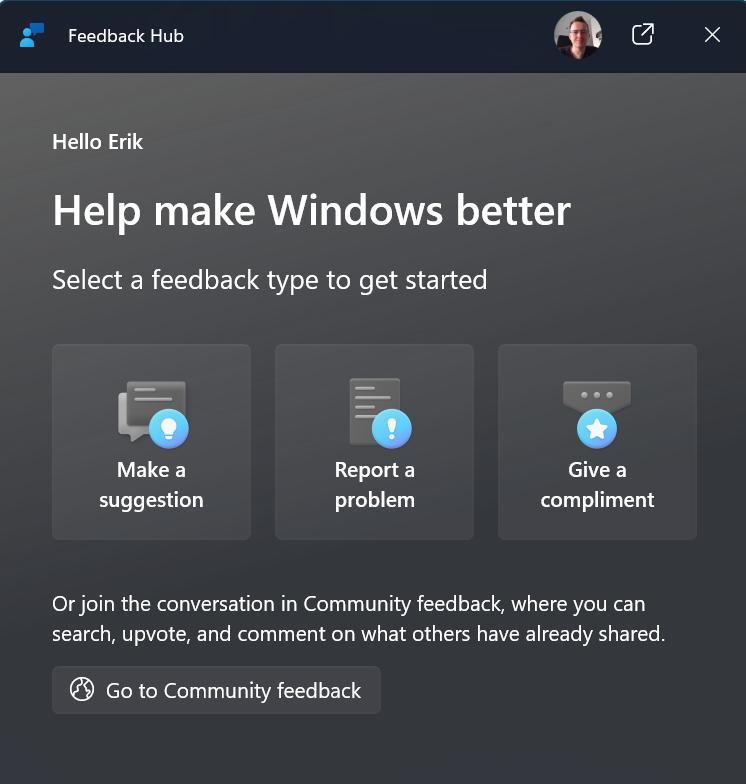
- New focused feedback experience: a new smaller Feedback Hub surface, making it easier to provide quick, in-the-moment feedback. You can expand to the full Feedback Hub experience by pressing the button in the upper right corner.
- Improved screenshot capture and review tooling: making it easier to capture and include visuals when sharing feedback.
Feedback: Your feedback helps shape what comes next, so try out the new experience and share your thoughts in Feedback Hub (WIN + F) under Apps > Feedback Hub.
source: Windows Blogs