Hi all, Yesterday Microsoft relesed Windows 11 Insider Preview Build 26200.5751 (KB5064071) to the Dev Channel.
Nice new Copilot+ and Snipping Tool updates
Happy Upgrades!
New Copilot+ PC experiences
Introducing New Selection Modes in Click to Do
We’re excited to announce powerful new ways to select objects in Click to Do: Freeform Selection, Rectangle Selection, and Ctrl + Click, giving you more control and flexibility than ever before.

Freeform Selection Mode: Tap the Freeform Selection button in the toolbar to activate this mode. Then use your pen or finger to draw freely around the entities you want to select. This makes selection feel more natural and intuitive, especially on touch-enabled devices.
Rectangle Selection Mode: Click the Rectangle Selection button in the Click to Do toolbar, then drag a box around the items you want to select. Everything inside the rectangle, regardless of type, will be included in your selection.
Ctrl + Click: Use your keyboard and mouse to multi-select different entity types, like text, images, and more, by holding down the Ctrl key and clicking on each item you want to include.
These new modes allow you to select multiple different entity types in a single gesture, making your Click to Do actions more powerful and efficient. Click to Do selection is now smarter, faster, and more fluid.
You can learn more about using Click to Do here.
FEEDBACK: Please file feedback in Feedback Hub (WIN + F) under Desktop Environment > Click to Do.
Changes and Improvements gradually being rolled out to the Dev Channel with toggle on*
[General]
- IT Admins can now remove select pre-installed Microsoft Store apps via Group Policy/MDM CSP on Enterprise/EDU devices. For more details, see this KB article.
[File Explorer]
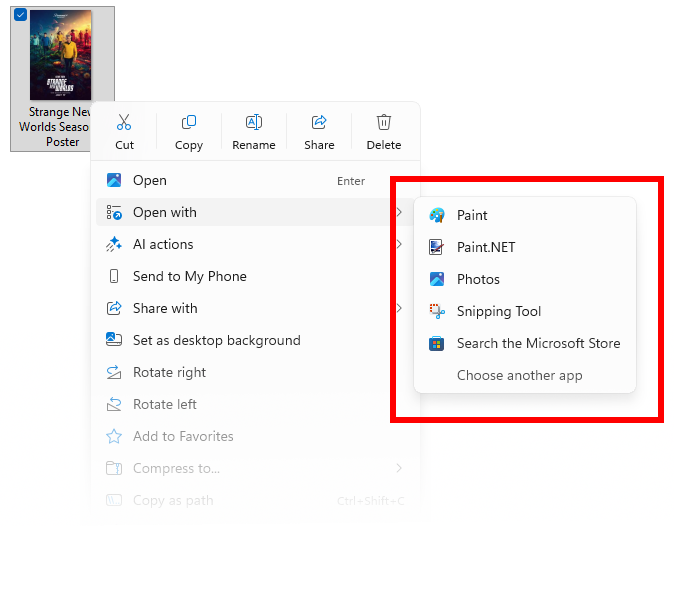
- We’re updating the “Open with” section of the File Explorer context menu when right clicking a file to remove the accent colored backplate behind packaged app icons in the list (for example, for Snipping Tool). In doing this, the icons should be bigger and easier to see now.
[Taskbar & System Tray]
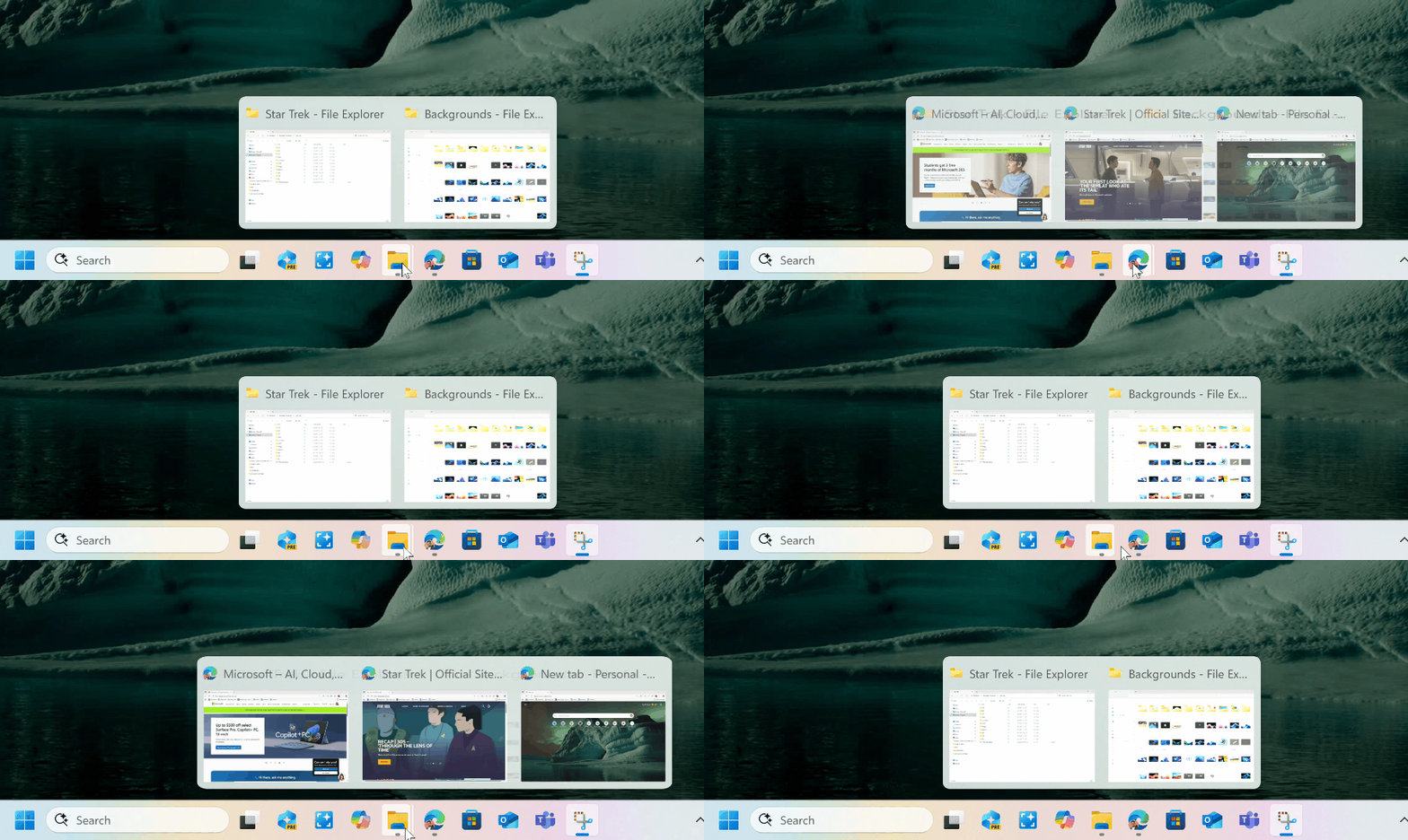
- We are updating the animations for mousing over app groups on the taskbar.
Fixes gradually being rolled out to the Dev Channel with toggle on*
[Taskbar & System Tray]
- Fixed an issue where, if you were using the option to show additional clocks, the date and time tooltip may show them duplicated.
[Start menu]
- Fixed an issue for Insiders with the new Start menu with the previous flight, where the layout might temporarily show a smaller Start menu (ex. 6 columns of pinned apps instead of 8).
- Fixed an issue for Insiders with the new Start menu, where it wasn’t opening when in safe mode.
- Fixed an issue where when right clicking on Start menu, the context menu may appear very far away from the Start menu.
- Fixed an issue where the “Hide this pane” option for the mobile device companion for the Start menu may be difficult to see if the option to use a custom accent color has been enabled for Start menu.
[File Explorer]
- Fixed an issue where in dark mode, the red color used for a low space drive in This PC was unexpectedly light colored in the latest builds (and some of the other colors were incorrect, including that black was used for space remaining instead of a more visible color).
[Login and Lock screen]
- Fixed an issue where some of the login options were shown as blank square icons.
- We did some work to help improve lock screen reliability, by fixing a few underlying issues which could result in the lock screen hanging.
[Live captions]
- Fixed an issue where live captions might crash when attempting to use live translation on a Copilot+ PC.
[Other]
- Fixed an issue causing some Insiders to experience an increase in DWM crashes in the previous flight.
- Fixed an issue where if you’d used the new option to move the hardware indicators, while the hardware indicator was visible, you wouldn’t be able to interact with the screen area underneath (spanning the length of the screen).
Fixes for everyone in the Dev Channel
[Click to Do (Preview)]
- Fixed the issue causing text and image actions in Click to Do to not work and Click to Do to crash after updating to Build 26200.5742.
[Taskbar & System Tray]
- After updating to the current Dev Channel builds, apps pinned to the taskbar should no longer be unpinned. If the issue persists, submit feedback via Feedback Hub.
Known issues
[General]
- Some Windows Insiders may experience a rollback trying to install this update with a 0x80070005 in Windows Update. We’re working on a fix for Windows Insiders impacted. If you are impacted, using Settings > System > Recovery > “Fix issues using Windows update” may resolve the issue.
[For developers]
- We are investigating reports after updating to Build 26200.5722 and higher in the Dev Channe that Visual Studio may crash on Arm64 PCs when running various scenarios that depend on Windows Presentation Foundation (WPF).
[Recall]
- [NEW] Windows Insiders in the EEA may hit in issue where Recall is not working correctly on their PCs after the most recent Dev and Beta Channel flights. To get back into a working state – please go to Settings > Privacy & security > Recall & snapshots > Advanced settings > Reset Recall and click “Reset Recall”.
[File Explorer]
- [NEW] For some users, the Shared section in File Explorer Home may be visible even if there is no content to display.
[Settings]
- [NEW] We’re investigating reports that Settings > System > Storage > Temporary files is getting stuck when scanning files. We are also investigating previous Windows Installations also not showing.
[Xbox Controllers]
- Some Insiders are experiencing an issue where using their Xbox Controller via Bluetooth is causing their PC to bugcheck. Here is how to resolve the issue. Open Device Manager by searching for it via the search box on your taskbar. Once Device Manager is open, click on “View” and then “Devices by Driver”. Find the driver named “oemXXX.inf (XboxGameControllerDriver.inf)” where the “XXX” will be a specific number on your PC. Right-click on that driver and click “Uninstall”.
Snipping Tool Update
We are rolling out an update for Snipping Tool (version 11.2507.14.0 and higher) to Windows Insiders in the Canary and Dev Channels. In this update, we’re introducing window mode screen recording in Snipping Tool—an easy way to capture activity within a specific app window. To get started, toggle over to the Record option in the capture toolbar and click on the dropdown menu for Recording area to select window mode.
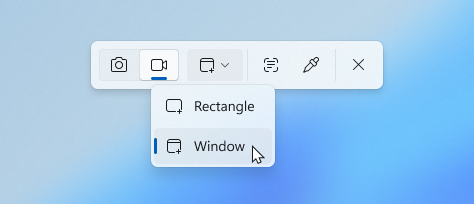
When you select window mode, Snipping Tool will automatically size the recording region to tightly match the app window you choose, making setup quick and precise. Once recording begins, however, the region remains fixed—so if the app moves or gets covered by another window, the recording won’t follow it. This gives you a simple, focused way to record what’s happening in a defined space on your screen, without needing to crop or adjust later.
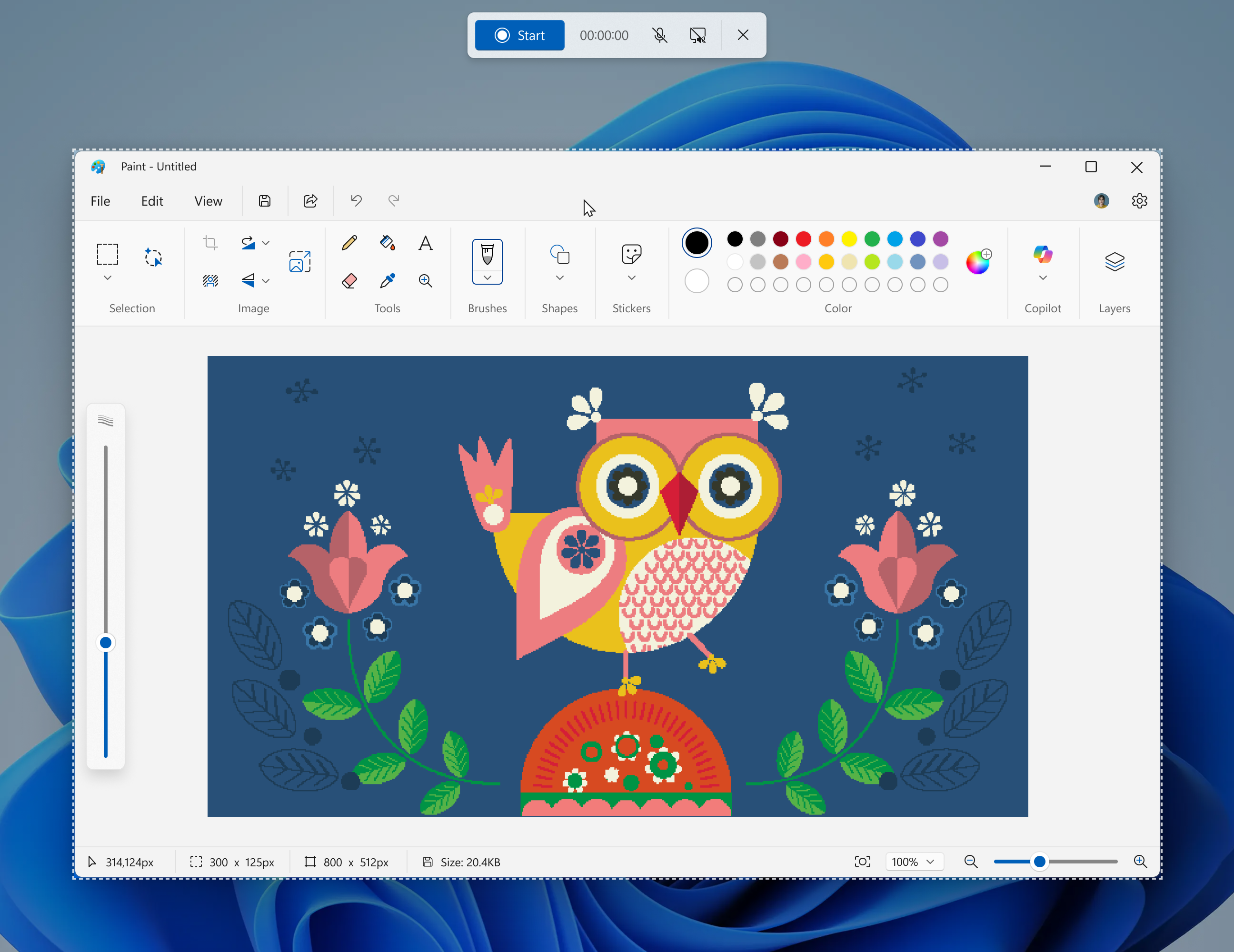
FEEDBACK: Please file feedback in Feedback Hub (WIN + F) under Apps > Snipping Tool.
source: Windows Blogs