
Most people think of the Pause button in Windows Update as a temporary freeze: stop installing updates for a while, resume later, nothing more.
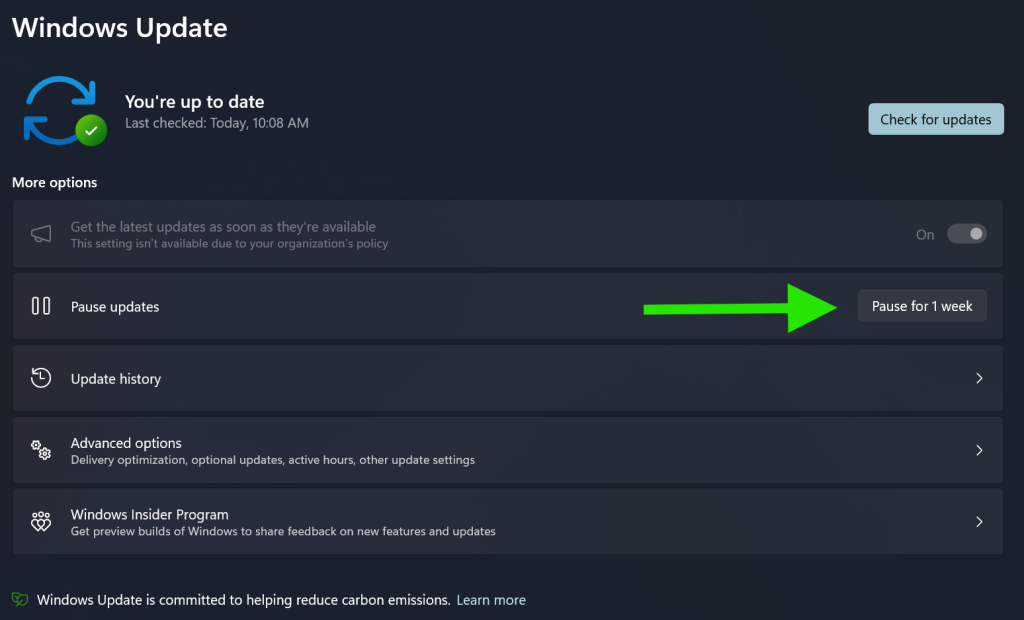
But under the hood, pausing triggers a subtle but powerful side effect:
Windows discards its current update evaluation state.
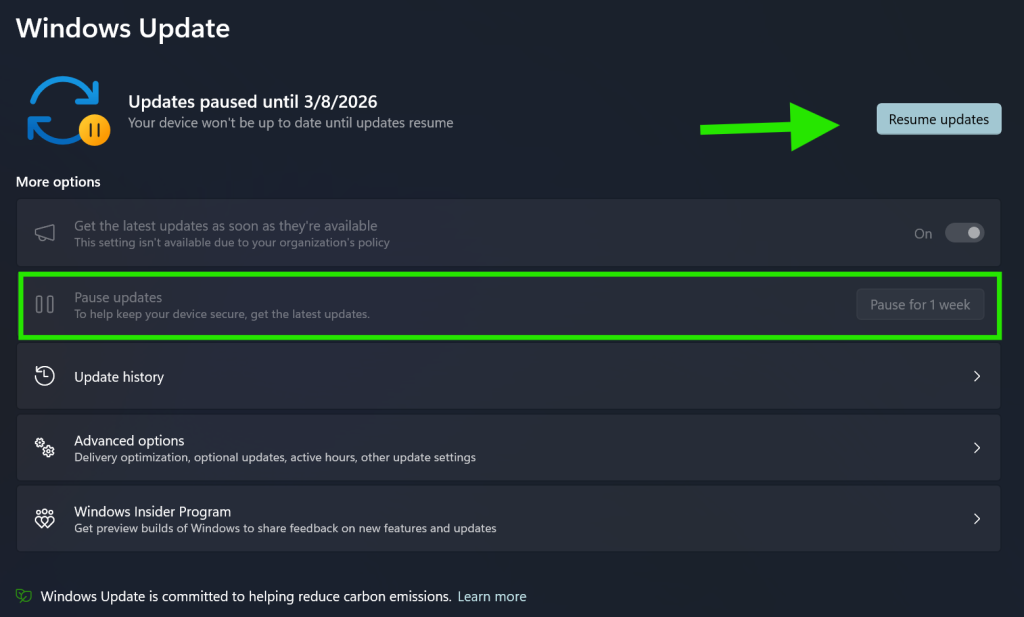
That means:
- Any previously queued updates are treated as no longer authoritative.
- The device is forced to re-check with Windows Update for what is currently applicable.
- Superseded or outdated updates are dropped from the queue.
- The update stack effectively gets a clean slate.
This is especially useful for devices that have been offline for a long time—laptops in storage, lab machines, loaner devices, or systems that were imaged months ago.
The real-world scenario: a device from storage
Imagine this situation:
- You pull a laptop out of storage.
- It was last updated six months ago.
- The moment it boots, Windows Update sees an old cumulative update pending.
- That update is already outdated—there are newer cumulative updates that include everything it contains.
- But Windows Update still tries to install the old one first.
- After rebooting, it will then install the newer one.
- That means two full update cycles, two reboots, and a lot of wasted time.
This happens because Windows Update initially works with whatever metadata it already has cached. It doesn’t immediately discard old update plans unless something forces it to.
That “something” is Pause.
How pausing and resuming fixes the problem
When you hit Pause updates, Windows Update:
- Cancels the current update plan.
- Clears the cached applicability state.
- Marks the device as intentionally out of the update cycle.
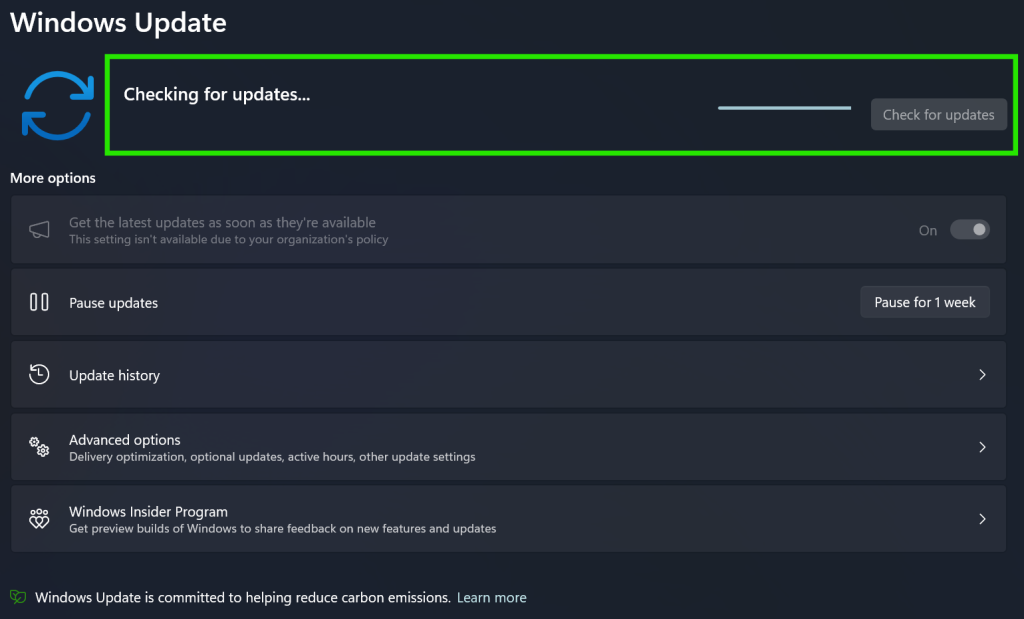
When you then Resume updates, Windows Update: - Performs a fresh scan against Microsoft Update.
- Re-evaluates which updates are required right now.
- Downloads only the latest cumulative update (LCU) and servicing stack update (SSU).
- Skips the outdated update entirely.
The result: - The device installs only the newest update.
- You avoid the “install old update → reboot → install new update → reboot” loop.
- The whole process is faster, cleaner, and more predictable.
Why this hidden behavior exists
Windows Update is designed to be resilient, not aggressive. It assumes that if an update is already staged, the user or admin intended it. Pausing is the one action that clearly signals:
This makes Pause a surprisingly powerful troubleshooting and optimization tool.
When this trick is especially useful
- Devices coming out of long-term storage
- Lab or classroom machines that are updated infrequently
- Loaner laptops that sit unused for months
- Systems restored from old images
- Devices that show a long list of pending updates that don’t make sense anymore
In all these cases, a quick pause–resume cycle can save you from unnecessary update churn.
A simple workflow you can rely on
- Open Settings → Windows Update.
- Click Pause for 1 week.
- Wait a few seconds.
- Click Resume updates.
- Let Windows perform a fresh scan and install only what’s truly needed.
It’s a tiny action with a surprisingly big impact.
Enjoy saving time with this!